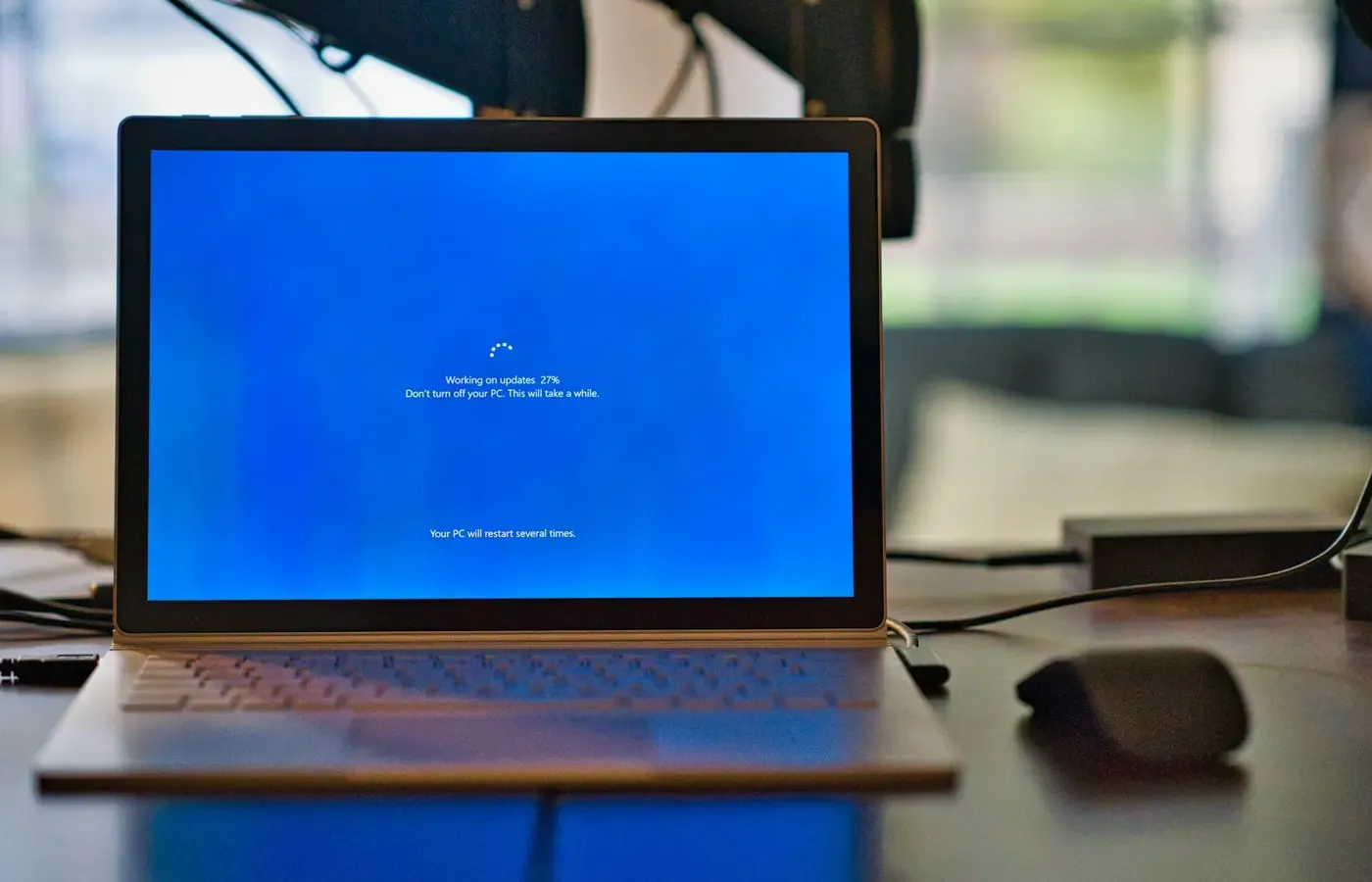
A laptop does not become useless on the day its operating system reaches end of support. It will usually still switch on, open documents and connect to the internet. What changes is more consequential: its maker stops supplying the fixes that close newly discovered weaknesses and, over time, the surrounding software and services may move on too.
That is not an automatic command to throw away a functioning machine. Nor is it a reason to treat an unsupported computer as equivalent to a current one because it still feels fast enough. The sensible response is to establish exactly what support has ended, then choose the smallest change that restores a supportable routine for the work you actually do.
For some people, that means a straightforward operating-system upgrade. For others, it means installing a different supported system, giving the old laptop a narrower role, or replacing it. The right answer depends less on the laptop’s age than on the accounts, files, applications and risks attached to it.
This guide is primarily about Windows, because the available evidence is Windows-heavy. Support dates, upgrade rules and migration tools differ across macOS, ChromeOS, Linux distributions and individual laptop makers.
End of support changes the risk, not whether the laptop works
When Windows is unsupported, Microsoft says it no longer provides software updates for that version. Those updates include security fixes and reliability improvements; Windows Update can also deliver updated hardware drivers. The company recommends moving to a current, supported release, or replacing a device that cannot meet the requirements for Windows 11. Microsoft’s support guidance explains the distinction.
The practical problem is not that every unsupported laptop will immediately be compromised. No source here can say how likely that is for a particular household or how long a machine can safely remain in use. Exposure depends on what is installed, whether the machine is online, how quickly new flaws are found, and what a successful attack would expose.
But the direction of travel is clear. The UK’s National Cyber Security Centre warns that obsolete products have two compounding disadvantages: developers are no longer releasing security updates, and older products may lack newer protections that make attacks harder to carry out or detect. That combination increases the likelihood and potential impact of serious incidents. Its guidance on obsolete products is aimed at organisations, but the underlying distinction matters at home too.
An unsupported laptop therefore deserves a different question from “does it still run?” Ask instead: is it still suitable for the most consequential things I ask it to do?
A device used for tax records, work documents, password management, banking, shopping, family photos or access to other accounts has more to lose than one used occasionally for a local spreadsheet or an old game with no sensitive data on it. Restricting an old laptop’s role can reduce exposure; it does not make an unsupported operating system secure.
First establish what has actually reached its deadline
“Unsupported laptop” can describe several different problems. The operating system may be out of support while a browser remains updated. The laptop may be unable to install the latest version of Windows while its manufacturer still supplies some firmware or driver updates. An application, cloud service or peripheral may have its own support timetable entirely.
Before buying anything or changing software, check five things.
- Identify the exact operating system, version and edition. “Windows 10” is not enough for every support question; update status can depend on the release and servicing channel.
- Identify the laptop model. Check the maker’s documentation for firmware, drivers and any model-specific Windows 11 compatibility information.
- Check the vendor-supported upgrade route. A machine may be eligible for a current operating system even if it has not offered the upgrade automatically.
- List the jobs that matter. Include work software, printers, scanners, docks, accessibility tools, games, specialist applications and file formats—not merely web browsing.
- Check whether a temporary support programme applies. Terms, eligibility, duration, availability and cost can change, so verify them directly before relying on one.
Windows 10 reached end of support on October 14, 2025. Microsoft says the operating system continues to function after that date but no longer receives fixes, new features or security updates. Its Windows 10 transition page also says that consumer Extended Security Updates are available.
That is useful context, not a substitute for checking current terms in your market. An extended-update programme may buy time for a careful migration; it should not be assumed to solve application compatibility, aging hardware or every form of support indefinitely.
Keeping the laptop can be reasonable—if you narrow its job
Keeping an unsupported laptop is most defensible when it has a limited, low-consequence role and you understand the compromise. It may remain useful for local files, a single non-sensitive task, older software that cannot easily be moved, or a temporary bridge while you plan a replacement.
The key is to distinguish convenience from suitability. A laptop that holds your main email account, financial records and saved logins is not in the same category as one used for a local hobby project. If an unsupported machine remains connected and handles valuable information, the missing stream of operating-system fixes becomes harder to justify.
A proportionate review starts with the machine’s data and connections:
- Which accounts can be accessed from it, and what would access to those accounts enable elsewhere?
- Which files are stored only on the laptop?
- Does it need to connect to the internet, shared storage, a workplace system or a home network?
- Are essential applications already losing compatibility?
- Is the laptop’s limited role realistic, or will it gradually become the convenient computer used for everything?
The last question matters. A carefully limited machine can quietly return to everyday use after a new laptop proves inconvenient, a printer fails to work, or a familiar application has not been migrated. If you cannot sustain the restrictions in ordinary life, they are not much of a plan.
This is also why the usual assurance that “I have antivirus” is incomplete. The issue is not simply whether one security product continues to update. An unsupported operating system may lack fixes and mitigations that sit below individual applications. Microsoft explicitly identifies the absence of security and reliability updates as the central consequence of unsupported Windows.
Changing the operating system can extend the hardware—but creates a project
A working laptop may be capable of a second life with a different supported operating system. This is often an appealing route for people who want to avoid replacing hardware that is otherwise adequate, particularly when their needs are largely web-based, document-based or centred on a few well-understood applications.
Alternative operating systems include Linux distributions and an installable edition of ChromeOS, as consumer publication Which? notes in its overview of post-Windows-10 options. The important word is “option,” not “answer.” A supported operating system can restore a pathway for operating-system updates, but it cannot guarantee that your particular laptop and working habits will transfer cleanly.
Treat the change as a compatibility project. Before erasing or replacing anything, verify:
- Wi-Fi, graphics, audio, webcam and sleep behaviour on the exact laptop model;
- wired networking, external displays, docks, printers, scanners and specialist peripherals;
- the applications you rely on, including whether a web version is sufficient;
- access to existing files and any proprietary formats;
- how you will back up, restore and update the new system; and
- whether you are willing to learn a different interface and resolve occasional problems.
A fingerprint reader, unusual wireless chip, old printer or specialist Windows application can turn an apparently simple software switch into an ongoing nuisance. Conversely, a laptop used mainly for a browser, email and documents may be a strong candidate—provided the new system supports its hardware and remains actively maintained.
Do not confuse “Linux” or “ChromeOS” with a single universal support promise. Support depends on the distribution or edition, its release, the device and the applications involved. Check the documentation for the exact alternative you are considering and, where possible, model-specific reports before committing your files and time.
Installing Windows 11 on unsupported hardware is not the same as being supported
There is a tempting middle ground for older but capable PCs: install Windows 11 despite Microsoft’s hardware requirements. It can appear to offer the familiar interface and continuing updates without the cost or disruption of a new machine.
It is not Microsoft’s endorsed path. Its guidance directs owners of devices that cannot meet the technical requirements for a current Windows release toward replacement with a device that supports Windows 11. That is a support boundary worth taking literally, even if an installation succeeds.
There is some limited evidence that this route can work in practice for particular machines. In a personal account based on three years of using unsupported Windows 11 PCs, Ars Technica reported that routine Windows and Microsoft Store updates installed on its systems. It also found that annual feature updates did not automatically download and install.
That account is useful precisely because it is narrow. It does not establish that every unsupported PC will receive updates, remain eligible for them, work reliably with every driver, or offer security equivalent to a supported configuration. It does suggest that “it installed” is only the beginning of the ownership question.
If you take this route, do so only if you can tolerate manual maintenance, understand that future behaviour may change, and have a recovery plan and current backup. It is better viewed as a hands-on compromise than as a free extension of official support.
Replacement earns its cost when the old machine cannot meet the job
Replacement is justified not by age alone but by a mismatch between the laptop and the work it must do. The case becomes stronger when there is no supported upgrade path, an alternative system would break essential tools, or the old machine is needed for sensitive or indispensable online activity.
There are also ownership costs beyond the operating system. A laptop may still be technically usable while its battery, storage, ports, keyboard, screen, charger or repair prospects make it an unreliable daily tool. The supplied evidence does not establish model-specific repairability, likely battery life, refurbishment quality or performance thresholds, so those need checking separately for the machines you are comparing.
A compatible used or refurbished laptop can be a rational replacement where budget matters, but it deserves the same support check as a new one. Confirm the exact model, installed operating system, eligibility for supported updates, condition, battery health where available, included charger, return terms and whether the applications you need will run. “Newer than mine” is not a sufficient test.
Migration is also part of the price. Microsoft’s Windows Backup information says its tool can save files, photos, settings, apps and sign-in credentials for restoration on a new PC. That may reduce friction for a Windows-to-Windows move, but it does not remove the need to check that important files are actually present and that essential applications are available on the destination machine.
A decision card: make the smallest change that restores a supportable routine
This is an editorial framework, not a vendor risk score. It is designed to keep a working laptop in service where that remains sensible without pretending that every form of continued use carries the same consequences.
| Your situation | The proportionate next step | What to verify first |
|---|---|---|
| Your laptop can take a vendor-supported current operating system | Upgrade, then confirm the machine and key applications update normally. | Exact device eligibility, storage space, peripherals and backups. |
| The laptop is useful but cannot run a supported Windows release | Consider a supported alternative operating system if its hardware and required applications are compatible. | Wi-Fi, graphics, peripherals, files and ongoing update policy. |
| You are considering Windows 11 on unsupported hardware | Treat it as a maintenance project, not official support. | Backup and recovery process, update behaviour and tolerance for manual intervention. |
| The laptop is needed for essential, sensitive or work-critical online tasks | Replace it if no supported configuration can meet those tasks. | Support status, application compatibility and a migration plan. |
| The machine has a limited role that does not justify a major change today | Keep it only with a consciously narrowed role while planning an exit. | Accounts, stored data, network access and whether the boundaries are practical. |
The useful goal is not to own the newest laptop. It is to have a device whose software support, applications and maintenance demands are proportionate to what you trust it with. A working old laptop may deserve another role, another operating system or a careful handover to a replacement. What it should not receive is an unexamined promotion back to being your main computer simply because it still turns on.
Questions worth asking before you decide
Can I still use a laptop after its operating system stops getting security updates?
Yes, it may continue to function, but unsupported Windows no longer receives the operating-system security and reliability updates Microsoft provides to supported releases. Continued use is a risk and suitability decision, not proof that the laptop is safe. A limited role may be more reasonable than using it for sensitive everyday tasks.
Does installing Windows 11 on unsupported hardware mean the laptop is supported?
No. A successful installation is not the same as meeting Microsoft’s supported hardware requirements. Ars Technica’s reported experience suggests some unsupported PCs received routine updates, but it also found yearly feature updates did not arrive automatically. That is not a guarantee for other devices or future releases.
Can installing Linux keep an old laptop secure?
A currently supported Linux distribution can provide an updated operating system for compatible hardware, but it does not automatically solve every problem. You still need to verify device drivers, applications, peripherals and the distribution’s support policy. A different operating system can extend useful life; it is not a universal compatibility fix.
What should I back up before changing operating systems or replacing a laptop?
Start with irreplaceable personal files and photos, then consider settings, application data, account access and any files tied to specialist software. Check that the backup can be opened from another device before changing the original machine. Microsoft’s Windows Backup may help with a move to a new Windows PC, but do not assume it covers every application or file type without checking.
Sources & methodology
This guide synthesises official Microsoft support material, UK National Cyber Security Centre guidance and one clearly attributed independent account of unsupported Windows 11 use. It does not claim to measure compromise risk, device reliability, repair costs, alternative operating-system compatibility or the quality of refurbished laptops.
- Microsoft: What does it mean if Windows isn’t supported?
- Microsoft: Making the transition to a new era of computing
- UK National Cyber Security Centre: obsolete products guidance
- Which?: Windows 10 end-of-support options
- Ars Technica: three years with unsupported Windows 11 PCs
Before acting, verify current support terms, exact operating-system version, market availability and the compatibility of your particular laptop and essential software.