A laptop does not become useless on the day its operating system stops receiving security updates. It should still start, open files and run much of the software it ran the day before.
What changes is less visible: newly discovered flaws in the operating system will no longer necessarily be fixed. Over time, that alters what the machine is sensible to trust with — especially when it is connected to the internet, handling passwords, opening downloads or holding personal and work files.
That does not create one compulsory answer. Some owners can move to a supported version of their existing operating system. Others may have a temporary extended-security option, or could install a maintained alternative operating system. Some can keep an older machine for a narrower, lower-risk role. And sometimes replacement is the least troublesome choice.
The useful question is not simply, “Does this laptop still work?” It is: what job can it still do with support, maintenance and risk at a level you can live with?
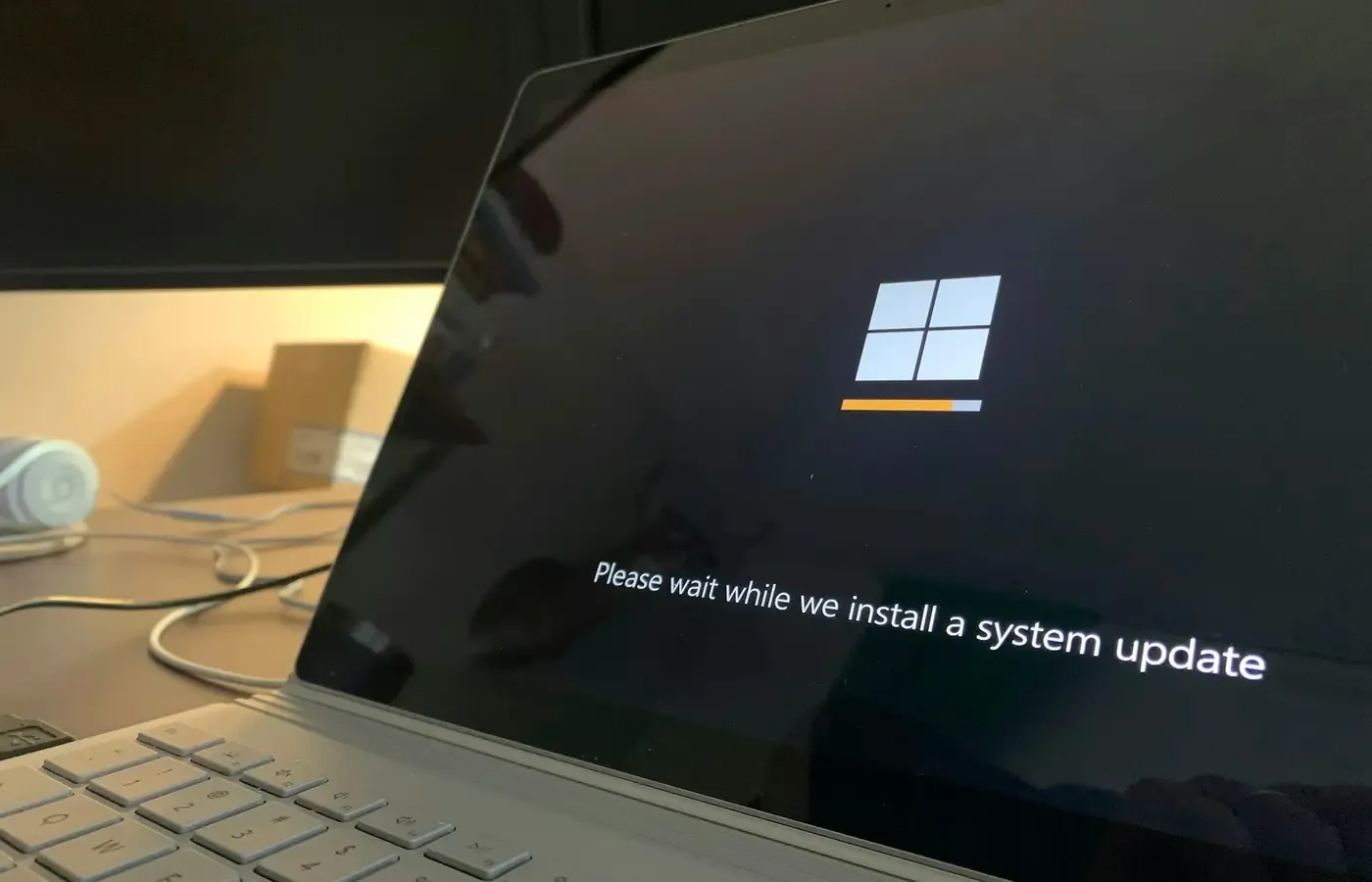
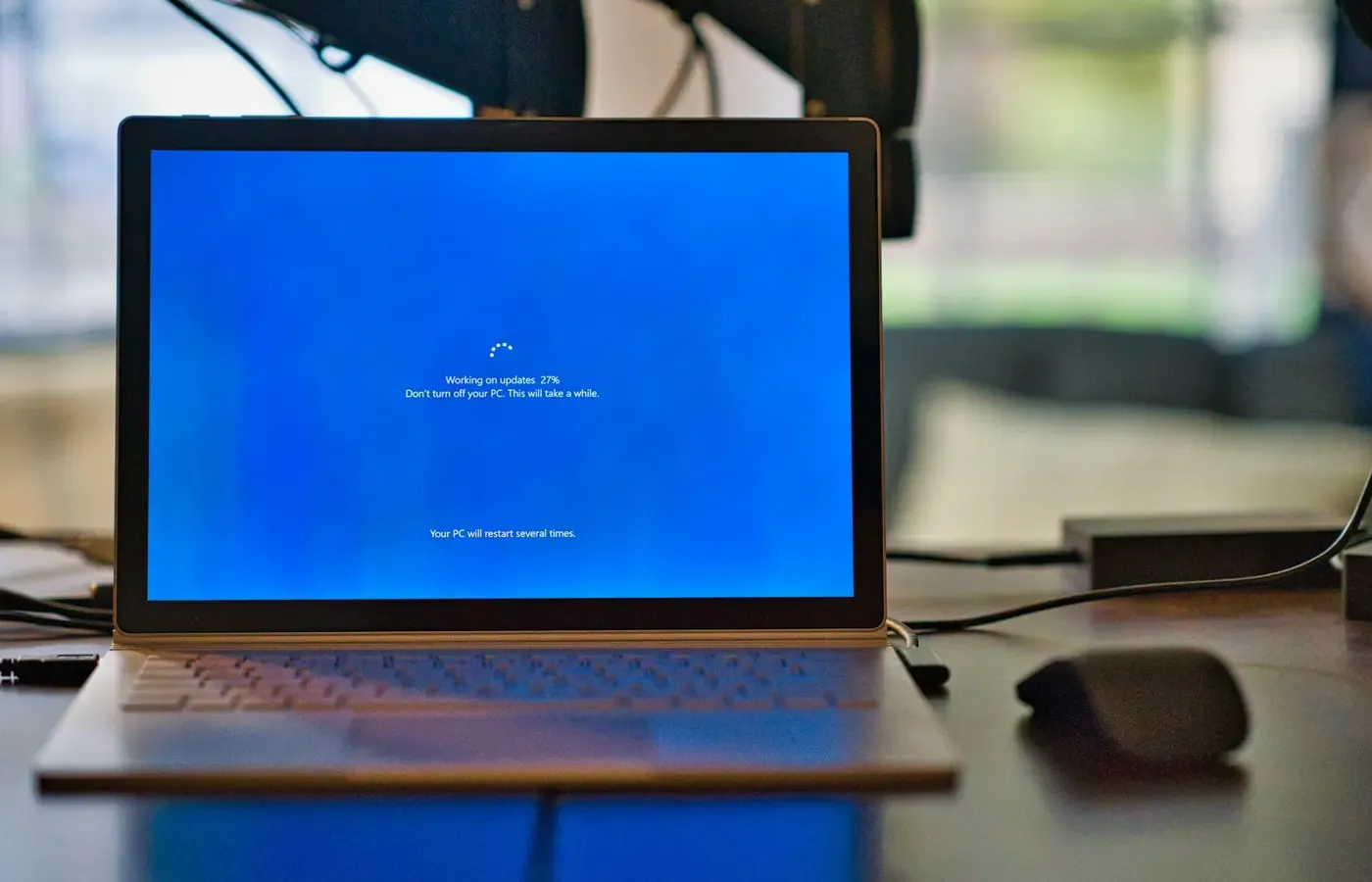
This guide is deliberately platform-neutral in method. Windows 10 is the current example in the supplied evidence: Microsoft has told customers that Windows 10 support was ending and pointed to newer PCs, cloud services and an Extended Security Updates path as possible responses. The exact terms, availability and eligibility of any extension must be checked in Microsoft’s current documentation for your market and device.
First, establish which support has actually ended
“Support” is often used as if it were one thing. For a laptop, it is several overlapping timelines, and they do not necessarily end together.
Start by recording the basics:
- the laptop’s make, model and approximate age;
- the installed operating system and its version;
- whether that exact operating-system version is still receiving security updates;
- whether your browser and essential applications are still supported; and
- whether the manufacturer still offers firmware, driver or diagnostic downloads for the model.
You can usually find the operating-system version in the system information or settings area, and the model on a label underneath the machine or in its system information screen. Keep a note of both before searching support pages. A family name alone is often not enough: a laptop line can contain several generations with different processors, ports and upgrade eligibility.
The most important distinction is between an operating system reaching end of support and the laptop itself failing. An end-of-support computer may be physically sound. Its keyboard, screen, storage and battery may still be useful. Conversely, a currently supported operating system does not make a laptop healthy if its drive is unreliable or its charger is failing.
Also separate operating-system support from manufacturer support. A maker may stop issuing new drivers while the operating system remains supported. A browser may continue to update after the operating system does not. Neither fact means the whole stack is equally protected.
The US Cybersecurity and Infrastructure Security Agency explains the underlying reason for checking all of this: attackers can exploit vulnerabilities in both operating systems and applications, while updates deliver patches for known flaws. Its guidance is straightforward: keep operating systems and applications up to date.
The laptop still works; the assurance has changed
End of support is not a countdown to immediate compromise. It is a change in the maintenance contract around the machine.
When a supported operating system has a security flaw, its developer may issue a patch. When ordinary support has ended, the laptop can continue to function, but that regular stream of fixes is no longer assured. The risk is cumulative rather than theatrical: each unpatched weakness is another issue that may remain open while the machine continues to be used for routine connected tasks.
That matters most when the computer is asked to do jobs that expose valuable accounts or data:
- signing into email, banking, shopping or government accounts;
- storing tax documents, family records or work files;
- opening attachments and downloaded files;
- using administrator accounts or saving passwords in the browser; and
- connecting to work, school or shared services.
It does not follow that every old laptop must be discarded. But it does mean that an unsupported installation should not be treated as equivalent to one receiving ongoing fixes.
An updated browser is helpful, but it is not a replacement for an updated operating system. Browsers cover one important route to the internet; they do not patch the operating system, its underlying components or every application installed on the computer. Likewise, antivirus software or careful habits can reduce some risks, but they do not restore the missing security maintenance from the operating-system developer.
The least disruptive route: move to supported software
For many people, the best outcome is not a new laptop but a supported version of the software they already use. Before beginning, confirm whether the machine meets the current operating system’s requirements and whether the applications and accessories you rely on will work there.
Make a short list of non-negotiables. It might include accounting software, a work VPN, a particular printer, a scanner, accessibility tools, music-production hardware or an old file format. A technically successful upgrade can still be a poor result if it breaks the task the laptop exists to perform.
Back up before changing anything. That means more than copying a few documents: include photographs, browser bookmarks, password-recovery information, licence keys where relevant, and any files stored in unusual folders or local application libraries. Make sure the backup can be read from another device. If the laptop has a recovery option, understand how it works before the change, not after a failed installation.
Microsoft’s Windows Experience Blog presents upgrading to Windows 11, moving to a newer PC, using cloud services or remaining on the current PC through an Extended Security Updates programme as possible paths for Windows 10 users.
Treat an extended-security programme as continuity time, not a permanent repair for an ageing setup. Before relying on one, verify the current official terms for your region: which devices and editions qualify, how long coverage lasts, what updates are included, what it costs if anything, and what happens when it ends. Those details can change, and a promotional overview is not a substitute for programme documentation.
A supported upgrade is usually the lowest-friction answer when it works. You retain familiar applications, file habits and peripherals. Its downside is that an older machine may not meet requirements, may run poorly after the change, or may need enough troubleshooting that the apparent simplicity disappears.
A different operating system can extend useful life — with a migration cost
Replacing an unsupported operating system with a currently maintained one is another route. Linux distributions are the option most often considered for older Windows-capable hardware, though this is a migration rather than a simple update.
The appeal is real. A maintained alternative operating system may allow a physically capable laptop to keep receiving security patches without being forced into hardware it cannot support. The Verge recently described one writer using Linux on an older ThinkPad that did not meet Windows 11 requirements. That is a useful illustration of the possibility, not proof that Linux will work well on every older laptop. The account is here.
The questions are practical rather than ideological:
- Does the chosen system support the laptop’s Wi-Fi, graphics, sound, sleep behaviour and storage reliably?
- Will your printer, scanner, webcam, external display or specialist accessory work?
- Are your essential applications available, or is there an acceptable replacement?
- Can you open, create and share the files that matter in your household, school or workplace?
- Who will help if something goes wrong?
A spare laptop is a better place to learn than the only machine containing your tax records. If you are considering a switch, first make a recoverable backup. Then test from removable media or on a separate drive where possible, and check the documentation for the exact operating-system project you are considering. Do not assume that a successful installation means every feature will behave properly over time.
For a reader whose needs are web browsing, email, writing and ordinary files, the migration cost may be manageable. For someone dependent on a particular Windows-only business application, proprietary hardware, games or workplace tools, it may be a false economy.
If you keep it, narrow what it is trusted to do
Sometimes there is no immediate supported path. Perhaps you need time to save for a replacement, an upgrade is blocked by compatibility requirements, or the laptop has a modest but useful role in the home.
In that situation, the honest approach is not to declare it safe. It is to reduce the consequences of a problem while you work toward a supported option.
Consider reserving the machine for tasks that do not involve important accounts, payments, sensitive files or work systems. A device used for offline writing, playing locally stored media, viewing non-sensitive documents or running a legacy tool has a different risk profile from one used for banking and email.
Continue installing application updates where they remain available. Keep copies of important files somewhere other than the laptop. Avoid adding more valuable data and more account access to an installation that has lost normal operating-system security maintenance.
This is risk reduction, not a security guarantee. CISA’s advice covers both the operating system and applications because each can contain exploitable vulnerabilities. A well-maintained browser cannot compensate for every unpatched component beneath it, and an unsupported operating system cannot be made fully current through caution alone.
Give this arrangement an end date. A temporary restricted role is easier to manage when it has a clear purpose — for example, using the computer only until a supported upgrade has been tested or a replacement has been prepared.
Replacement is not the only exit, but it can be the cleanest one
Replacement becomes more reasonable when a laptop cannot run a supported system suitable for your needs, when critical applications or peripherals cannot move, or when hardware problems pile up alongside the software issue.
The deciding factor is not age by itself. It is the combined burden of maintenance.
A new machine may be excessive if the old one only needs a supported operating system and a modest repair. Equally, repeatedly working around unsupported software, unreliable storage, a failing battery and missing accessories can cost more time and confidence than a replacement is worth.
Before buying new, consider the alternatives:
- repair a specific fault if the rest of the laptop can run supported software;
- buy a compatible used or refurbished laptop with enough remaining support life for your needs;
- simplify the job by using a tablet, shared family computer or desktop for sensitive tasks; or
- repurpose the old laptop for a restricted offline or low-sensitivity role.
Do not assume that newer is automatically more durable, more repairable or better supported. Those are model-specific questions. Check the operating-system eligibility, warranty terms, available ports, repair options and the expected life of the software support before treating a purchase as an answer.
A decision card for the next week
If your laptop has reached — or is approaching — the end of operating-system support, take these steps in order:
- Identify the exact laptop and installed operating-system version. Check the official lifecycle status for that version, not just the laptop’s age.
- Back up files and recovery information. Confirm that the backup opens on another device or in another location.
- List what the laptop must do. Include applications, peripherals, account access and files that cannot be disrupted.
- Check the least-disruptive supported route. That may be an in-place upgrade or an officially offered extended-security option.
- Test alternatives before committing. If considering another operating system, verify the hardware and software that matter to you.
- Restrict an unsupported installation while deciding. Do not let convenience quietly turn a temporary arrangement into the computer you trust with everything.
- Set a retirement or repurposing date. If no viable supported path exists, decide what role the laptop can safely retain — or whether it is time to replace it.
The bounded judgment is simple: an unsupported laptop is not automatically electronic waste, but it should no longer be treated as a fully maintained general-purpose computer. Keep it when there is a credible supported path or a suitably limited role. Replace or retire it when maintaining that distinction costs more effort, risk or compromise than the machine is worth.
Sources & methodology
This guide distinguishes between vendor statements about support options and public-security guidance about why updates matter. It does not claim testing of any laptop, operating system, Linux distribution, accessory or extended-security programme.
- CISA: Keep Your Device’s Operating System and Applications Up to Date — used for the general security rationale for maintaining operating systems and applications.
- Microsoft Windows Experience Blog: Windows 10 support transition — used as Microsoft’s account of the options it presents to Windows 10 users, including an Extended Security Updates path.
- The Verge: an older ThinkPad moved to Linux — used only as an attributed example that an alternative operating system can be viable on some older hardware.
For an individual decision, verify current lifecycle, upgrade, firmware, driver and extended-support details in the official documentation for your exact laptop, operating system, market and account.