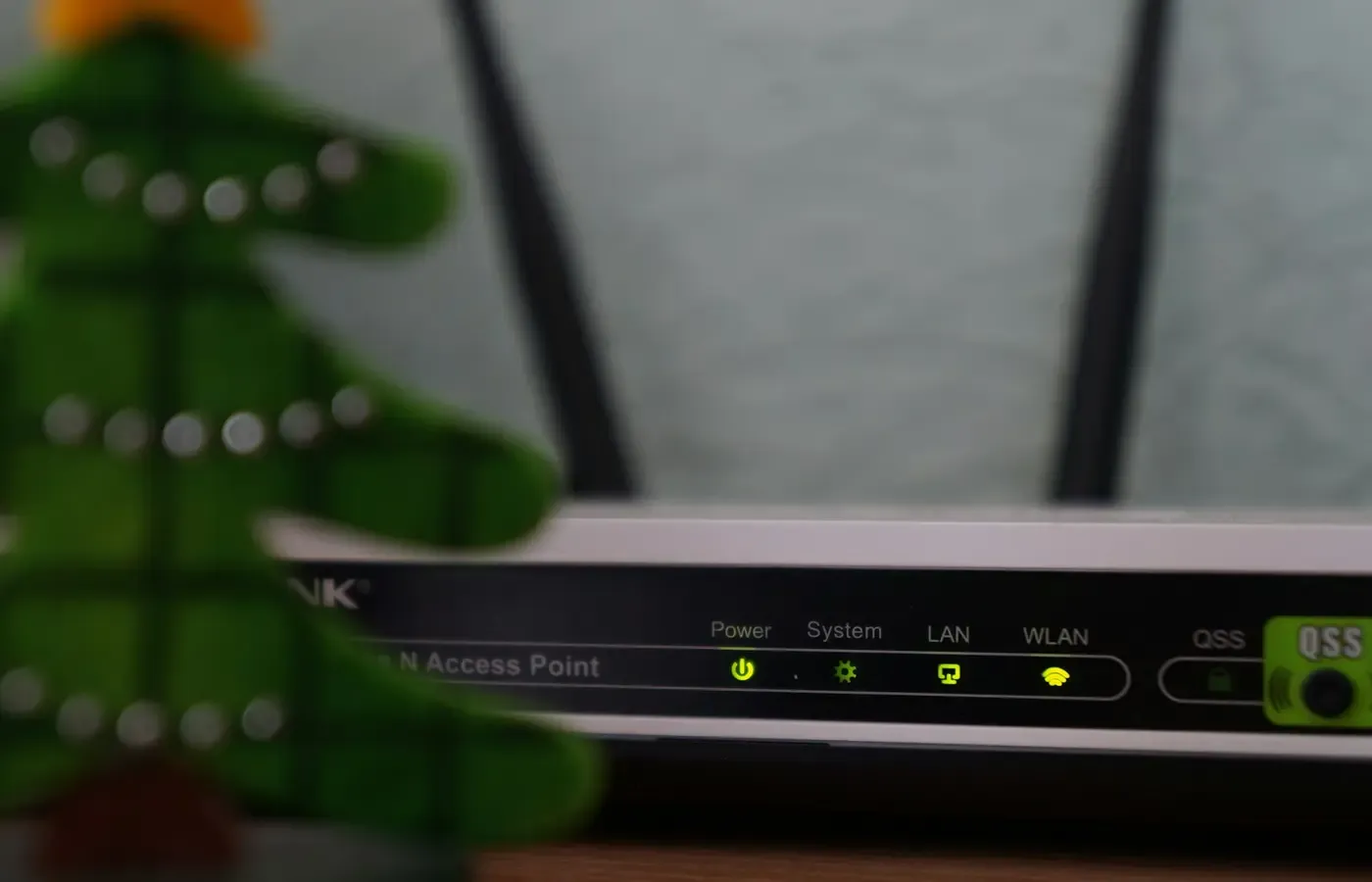
A router can be old, slow-looking and perfectly adequate. It can also deliver a reliable internet connection long after its manufacturer has stopped fixing security problems.
Those are different conditions. A working connection is not proof of continuing support.
For most households, a router end of life decision should begin with a narrower question than “Do I need newer Wi-Fi?”: is this exact device still receiving security maintenance, and who is responsible for it? The answer may point to keeping the router, replacing it, or asking your internet provider to change an ISP-owned gateway.
This guide concerns consumer home routers and residential gateways. It cannot establish the support status of any particular model: that depends on its manufacturer, hardware version, market and the provider that may manage it. Nor does an unsupported router mean it has certainly been compromised. It means a useful layer of future maintenance may have disappeared.
A working connection is not proof of security support
Firmware is the software that runs a router. It controls the network, applies configuration choices and can be updated to address weaknesses, bugs and reliability problems. As NETGEAR’s replacement checklist notes, a router may continue connecting to the internet after support ends without receiving new security fixes.
That distinction matters because a router sits at the edge of a home network. It is not simply another Wi-Fi device that can be ignored when it becomes unfashionable. A laptop or phone may receive regular operating-system updates; an older router may not.
Age is a useful prompt to investigate, but not a verdict. Some manufacturers publish end-of-life lists, and Consumer Reports advises treating a device listed by its maker as no longer actively supported as a replacement signal. A lack of a recent update may be concerning, but it is not conclusive on its own. Some models receive infrequent updates because no change is needed; others are quietly out of support.
The most reliable answer comes from the exact manufacturer support page or lifecycle notice for your model, not from a generic “replace every few years” rule.
First, identify the box that actually runs your network
Before researching a model number, establish which piece of equipment is doing what. Homes can have several similar-looking boxes:
- a standalone modem, which connects the home to a cable, fibre or telephone network;
- a standalone router, which manages the local network and Wi-Fi;
- a mesh system, with a main router and one or more satellite nodes; or
- a residential gateway that combines modem and router functions.
The distinction affects both responsibility and your replacement options. The Federal Communications Commission confirms that ISP-provided residential gateways may combine modem and router functions in one device. Replacing such a gateway may be more involved than swapping a personally owned Wi-Fi router: the provider may need to approve, activate or replace the equipment.
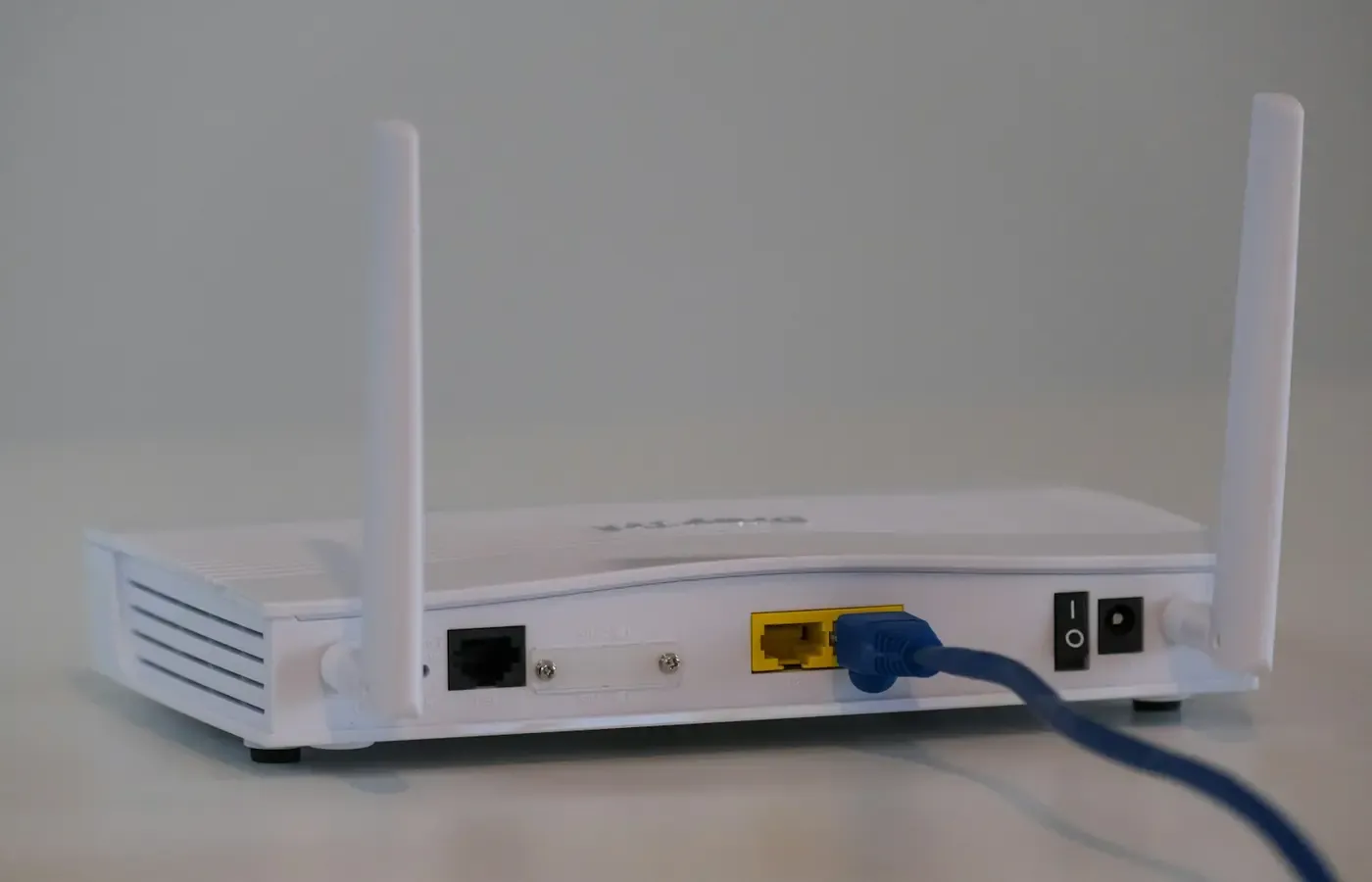
Start with the physical label. Record the manufacturer, full model number, hardware or revision number, serial number and whether the device appears to belong to your ISP. Hardware revision matters because models with nearly identical names can have different firmware and support pages.
Then check your ISP account, bill or equipment documentation. If there is a monthly equipment charge, you may be renting a gateway or router. If the device was supplied without an obvious charge, do not assume ownership: providers use different arrangements, and policies vary by market and service plan.
This is the practical dividing line:
| If the equipment is… | Your first call should be… | What to confirm |
|---|---|---|
| Personally owned | The manufacturer’s exact support page | Firmware availability, end-of-life notices, current security settings |
| Rented or ISP-managed | Your ISP | Whether it manages updates, whether replacement is available, any charge or service impact |
| A modem-router gateway you own | Both manufacturer documentation and ISP setup rules | Compatibility, activation process and whether separate equipment is permitted |
| Part of a mesh system | The mesh maker’s support documentation | Support status for the main unit and any satellite nodes |
Do a short support-status check before spending money
A useful check takes less time than shopping for replacements, and it can prevent buying the wrong sort of device.
1. Match the exact model to its support page
Search the manufacturer’s support site using the full model and hardware revision from the label. Avoid relying on retailer listings, forum comments or a model family name. Look for:
- a stated end-of-life, end-of-support or discontinued notice;
- firmware downloads or release notes;
- security advisories affecting the model;
- a support statement explaining whether updates continue; and
- the latest firmware version and its release date.
Install available updates only through the router’s own administration interface or the maker’s documented process. Firmware from a similar model or revision can be incompatible.
If automatic updates are offered, turn them on after checking that the router has completed the update successfully. NETGEAR’s guidance similarly recommends checking the exact model, installing available updates and enabling automatic updates where supported.
2. Treat silence carefully
No update for a long time is a reason to investigate, not proof that a router is abandoned. Manufacturers do not all use the same publishing practices. Conversely, a support page that remains online does not necessarily mean a product is still getting security fixes.
The strongest evidence is a clear lifecycle statement from the manufacturer. The next strongest is an active support page with recent, model-specific firmware releases or security bulletins. If you cannot establish either, the uncertainty itself has value: it may be sensible to plan a replacement rather than waiting for a failure or a security incident.
3. Separate support from speed problems
Slow Wi-Fi, dropped calls and buffering can justify troubleshooting or replacement, but they do not automatically prove a security problem. NETGEAR separates support checks from connection reliability and performance checks: cables, placement, internet-service faults and device limitations can all affect everyday performance.
Do not replace a secure, supported router merely because a broadband upgrade or a poorly placed satellite has made the network feel worse. First compare a wired connection with Wi-Fi near the router, and ask the ISP whether the incoming service is operating as expected.
Treat old Wi-Fi security as a replacement signal
While you establish support status, inspect the router’s security settings. The names differ between brands, so use the manual or administration interface for your model rather than following menu instructions intended for another device.
The US Cybersecurity and Infrastructure Security Agency’s home Wi-Fi guidance recommends WPA3 Personal or WPA2 AES protection. CISA advises replacing or upgrading equipment that uses obsolete options including WEP, WPA or WPA2 TKIP.
That makes old encryption a more immediate concern than a router’s cosmetic age. If the available choices are WEP, WPA or WPA2 TKIP, do not try to preserve the arrangement indefinitely for the sake of avoiding setup work. If your ISP supplied the router, CISA says to ask the provider for an upgrade; otherwise, consider replacing the device.
There are two separate passwords to inspect:
- The Wi-Fi password, used by phones, computers and smart-home devices to join the network.
- The router administrator password, used to change settings such as DNS, port forwarding, guest access and firmware.
Both should be unique. A strong Wi-Fi password does not protect a router whose administrator account still uses a default or reused password. CISA specifically advises changing router login credentials and protecting the home network.
Changing encryption may briefly disrupt older devices. A very old printer, camera or smart appliance may not support WPA2 AES or WPA3. That is not a reason to leave the whole network on a weaker setting without thought. It is a reason to identify the incompatible device, check for its own update and decide whether retaining it is worth weakening the rest of the network.
Keep it, replace it, or take the ISP gateway?
Once you know the ownership and support position, the decision becomes less abstract.
Keep the router when support is clear
Keeping a router is reasonable when you can confirm that its maker still provides security maintenance, its firmware is current, and it supports WPA2 AES or WPA3 Personal. This is the least disruptive option and may be the best one for a household with working mesh nodes, carefully configured local devices or no need for greater coverage.
Keep checking for updates. “Supported today” is not a lifetime guarantee, especially for products whose support period is not publicly stated.
Replace personally owned equipment when support has ended
Replacement is the clearer choice when the manufacturer lists your router as end of life, declares it unsupported, or the device cannot use secure Wi-Fi protection. It is also sensible where you cannot establish a credible support path and do not wish to accept that uncertainty.
The cost is not just the new hardware. Allow time for setup, reconnecting devices and recreating any local settings. A replacement should solve a defined problem: supported firmware, better coverage, a wired connection for a particular room, or compatibility with an internet-service upgrade. Buying the newest standard without a use case can add expense without noticeably improving daily use.
When comparing new equipment, look beyond headline wireless speeds. Ask how updates are delivered, whether the manufacturer publishes lifecycle information, whether key controls require an app or account, and what happens if you later leave that ecosystem. Those questions are about ownership, not simply performance.
Consider an ISP gateway when support labour matters more than control
An ISP-provided gateway can simplify responsibility. The provider may be the first point of contact for equipment faults and may replace hardware as part of the service arrangement. It can be a pragmatic option for households that prefer one support channel over managing a separate router.
But the details are provider-specific. An ISP gateway may involve a recurring equipment charge, have fewer configuration choices than a self-managed router, or affect features you use today. Do not assume any of those outcomes without checking your provider’s current equipment policy, fee schedule, replacement process and documentation for the offered model.
For some households, the compromise is worthwhile. For others, especially those with a mesh system, custom DNS settings, local storage or more elaborate port-forwarding arrangements, an independently chosen router may offer better continuity. Neither route is automatically more secure; the crucial question is whether the device will be maintained and configured safely.
Plan for what may disappear during a swap
Replacing network equipment can make ordinary household technology briefly feel fragile. Before resetting, returning or disconnecting anything, make an inventory.
Record your current:
- Wi-Fi network name and password;
- internet connection type and ISP login details, if applicable;
- connected smart-home devices, cameras, printers and streaming boxes;
- guest-network settings;
- parental-control or content-filtering settings;
- port forwards, reserved addresses and custom DNS choices;
- mesh node locations and names; and
- administrator credentials and recovery information.
Some routers can export a configuration backup, but do not assume that backup can be imported into a different brand or even a newer product generation. Check the exact manual. A clean setup can be safer than copying years of old settings, but it creates more work.
Keeping the same Wi-Fi name and password may let many household devices reconnect automatically. That convenience has limits: older devices may still need to be rejoined, and a new router may use different security settings. If you are replacing equipment because the old network used obsolete encryption, do not recreate the old weakness merely to avoid reconnecting a few devices.
If your current box is a combined gateway, verify the ISP’s activation and compatibility requirements before buying hardware. A router is not a substitute for every kind of modem, and a service provider may require a particular arrangement.
A bounded decision, not an upgrade reflex
The sensible rule is not “replace every ageing router.” It is: replace confirmed unsupported equipment, or equipment that cannot be configured with current basic Wi-Fi security.
Use this decision card:
- Keep it for now if the exact model is still supported, fully updated and using WPA2 AES or WPA3 Personal.
- Plan a replacement if support status is unclear and the manufacturer provides no credible current information, especially if the device is central to a busy home network.
- Replace it promptly if the manufacturer lists it as end of life, it no longer receives security maintenance, or it relies on WEP, WPA or WPA2 TKIP.
- Contact the ISP first if it owns or manages the gateway, or if your home internet depends on a combined modem-router device.
- Do not confuse poor speed with end of life. Investigate coverage, placement, cables and the incoming service separately.
A router is easy to overlook because it usually works quietly. That is precisely why support status deserves an occasional deliberate check. The goal is not to chase new networking hardware. It is to keep a necessary household device within a support relationship you can understand—and leave when that relationship ends.
Sources & methodology
This guide uses official US government guidance for baseline home Wi-Fi configuration and equipment definitions, plus manufacturer and independent consumer guidance on firmware support. It does not assign support dates, prices, feature sets or ISP policies to any individual product because those details vary by model, hardware revision, country and provider.