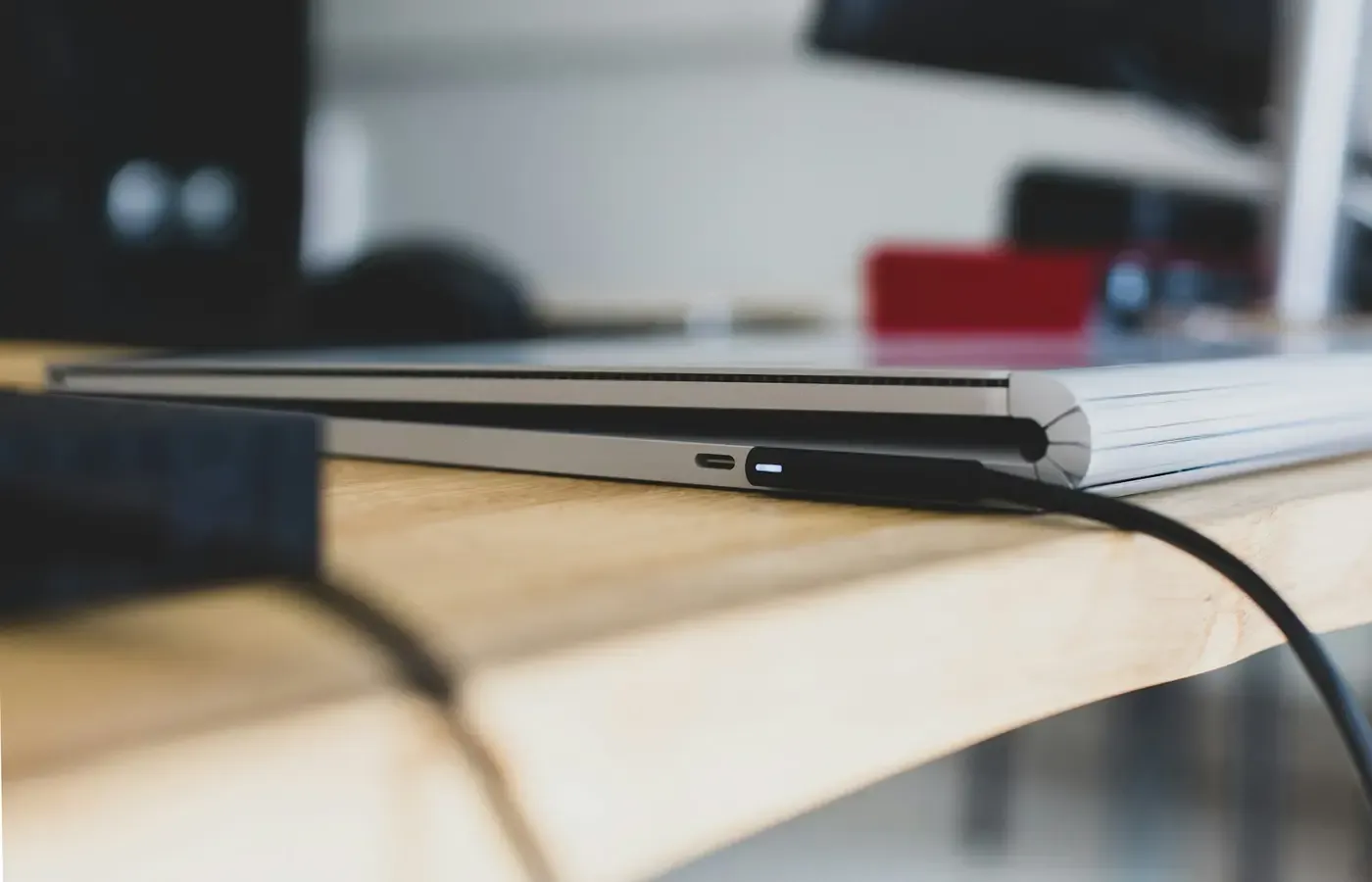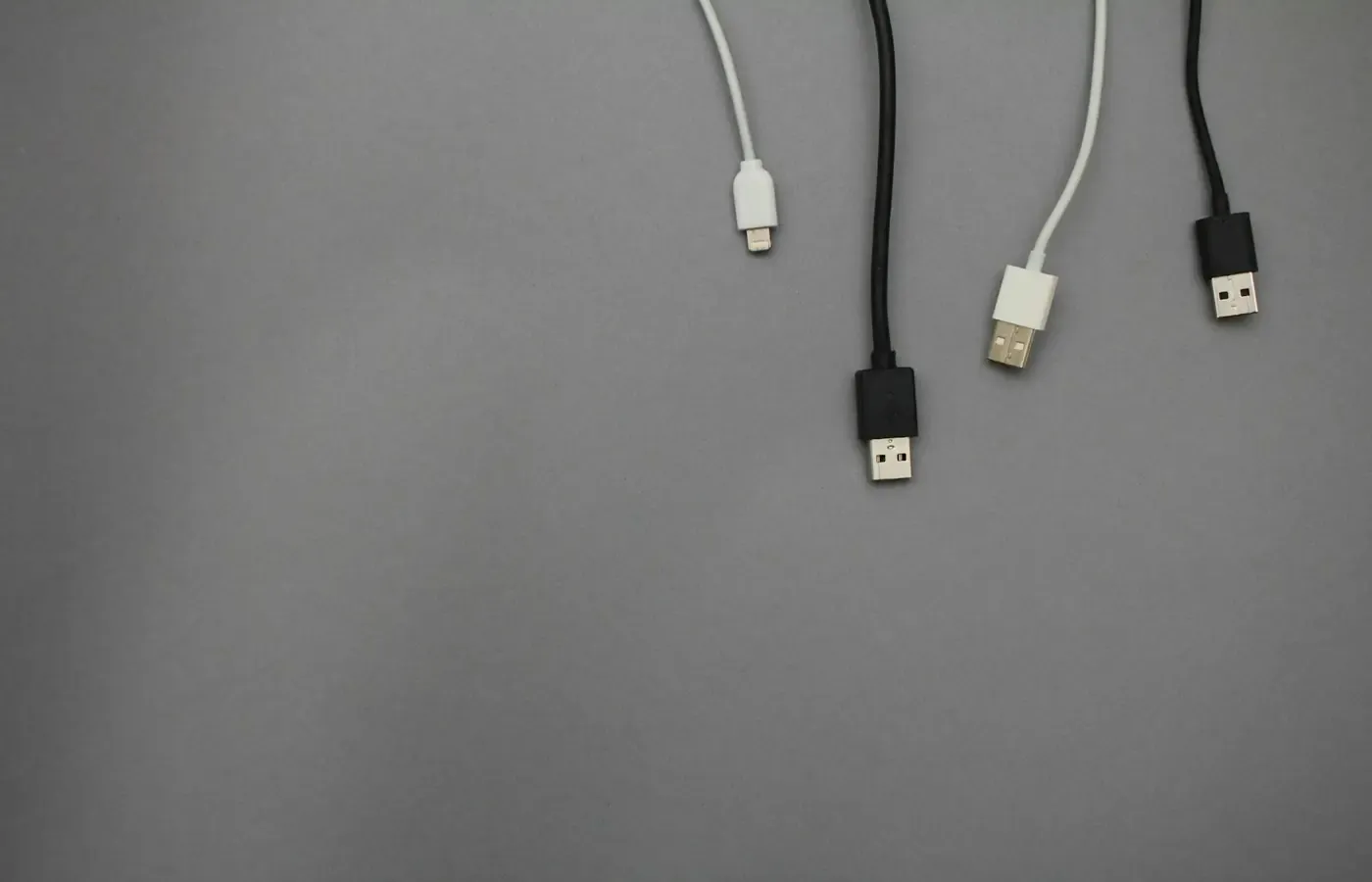
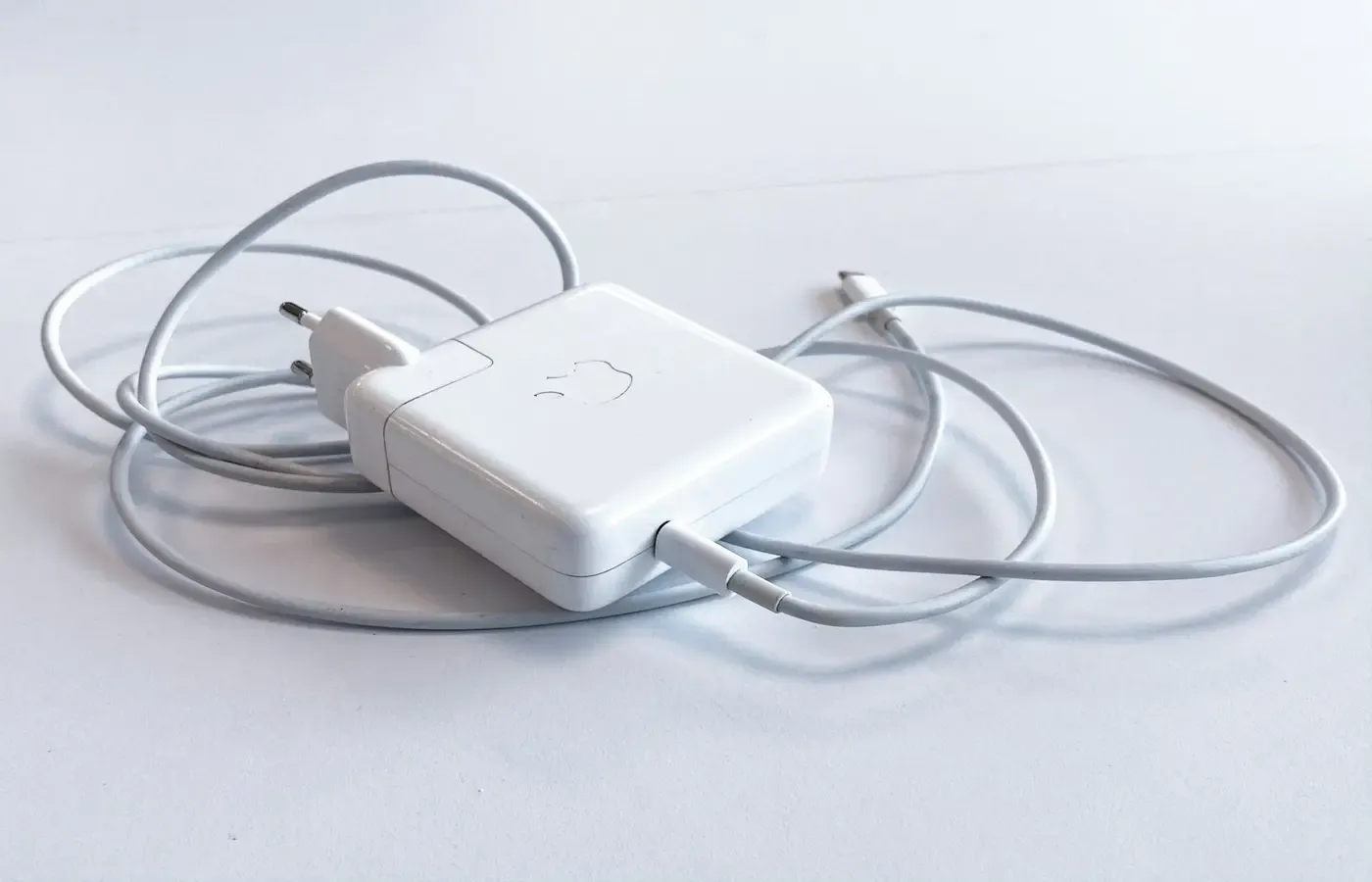
USB-C has made the prospect of one charger for a laptop, phone and other small devices seem almost routine. In the best case, it is: a compact USB-C Power Delivery charger can replace a bulky laptop brick and reduce the clutter in a travel bag.
But the connector is only the visible part of the arrangement. A USB-C-shaped port does not necessarily accept power, and a charger’s headline wattage does not necessarily describe what one port can provide while other devices are connected. The cable matters too.
The useful question is not whether a charger is “good for laptops”. It is whether it can provide the kind and amount of power your exact laptop expects, through a cable that can carry it, in the way you intend to use it. That is especially important when buying a replacement adapter or trying to turn one multiport charger into a shared household or travel solution.
USB-C is a connector, not a charging guarantee
USB-C describes a physical connector. It does not, by itself, tell you whether a port supports charging, video output, fast data transfer or all three. Kensington’s USB-C guidance makes the basic point clearly: USB-C ports and accessories can have different capabilities, and the laptop maker’s manual or specification is the place to establish what a particular port does.
For laptops that charge through USB-C, the relevant charging standard is generally USB Power Delivery, often abbreviated to USB PD. Apple, for example, says a Mac laptop that charges by USB-C can use a USB-C power adapter or display that supports USB PD. That statement is useful, but it is not a licence to buy any USB-C charger with a reassuringly large number on the box.
First establish two things:
- whether your laptop can charge through USB-C at all;
- which port or ports accept power, if it has more than one USB-C or Thunderbolt port.
Some laptops retain a dedicated barrel connector even though they have USB-C ports for accessories. Others can charge from USB-C but have particular ports that work best with a dock or display. Product family names are not precise enough here: manufacturers often sell different configurations under similar names.
Find the model number on the underside of the laptop, in the operating system’s device information, or on the original invoice. Then look for the manual or technical specifications for that exact model. If the documentation does not say that USB-C charging is supported, do not assume it is.
Start with the laptop’s known power requirement
The original power adapter is a useful baseline because it is known to work with the machine. Its label should show an output rating in watts or in volts and amps. Manufacturer documentation may also list a recommended adapter wattage or a minimum requirement for USB-C charging.
For Mac laptops, Apple’s adapter guidance says that, for the best charging experience, a USB-C power adapter or display should provide at least the minimum wattage of the adapter recommended for that Mac model. That is a sensible method beyond Apple’s range too: begin with the laptop maker’s specified adapter, not a generic chart based on screen size or the label “thin and light”.
HP’s charging guide illustrates why categories can be misleading. It lists different recommended wattages across its own Chromebooks, thin laptops, standard laptops and more demanding machines. Those figures should not be treated as rules for other brands, but they do show why “a laptop charger” is not a sufficiently specific shopping category.
A recommended adapter rating is not quite the same thing as a prediction of what the laptop consumes every second. A computer’s demand changes with workload, battery state, screen brightness and attached accessories. But the recommended rating remains the practical ownership baseline for sustained work and reasonably prompt charging.
If the supplied adapter is 65W, for example, a 65W USB-C PD charger with a suitable cable is a sensible starting point. A lower-rated charger may still be useful in some circumstances; it should be treated as a deliberate compromise rather than an automatic equivalent.
Read the charger’s port specifications, not only the headline
A charger advertised as “100W” may be able to provide 100W through one USB-C port when it is the only device connected. It may provide less from that port once a phone, tablet or watch is added. Or it may reserve the highest output for one particular port.
This is why the large number on the front of a multiport charger is only the beginning of the comparison. Look for its technical specification or manual and check:
- USB Power Delivery support. A USB-C port that is intended chiefly for data or low-power accessories is not automatically suitable for a laptop.
- Maximum output for the specific port. Identify which USB-C port is capable of supplying the output you need.
- Output with one device connected. This is often the most favourable figure shown.
- Power allocation with several devices connected. A proper specification should state how the charger divides its available power across its ports.
- Whether the output table matches your use. A charger can be adequate for a laptop alone but inadequate for the laptop-plus-phone arrangement that prompted the purchase.
A charger does not force its maximum rating into a laptop. HP explains that its USB-C PD adapters adjust the power they provide according to the connected device’s needs; its example notes that a higher-watt adapter can provide lower levels of output where appropriate. In ordinary use, a higher-rated compatible USB-C PD charger is therefore not inherently a problem simply because its maximum exceeds the laptop’s supplied adapter.
That does not establish the quality, safety or reliability of every third-party charger. The supplied material does not compare particular chargers, assess their heat management or test their long-term durability. It supports a compatibility method, not a blanket endorsement of every product carrying a USB-C label.
Displays and docks are chargers too
A USB-C or Thunderbolt display may provide power to a connected laptop. Apple explicitly includes compatible displays in its guidance on USB-C charging. That can be convenient at a desk: one cable can connect the display and supply power.
The same check still applies. Find the display’s stated power delivery output and compare it with the laptop’s recommended minimum. A display that is excellent for a light laptop may be a poor match for a more demanding workstation, particularly if the laptop is expected to recharge while doing sustained work.
The cable can be the bottleneck
The cable is easy to overlook because it has the same USB-C plug at each end as many other cables. Its capabilities are not necessarily the same.
Kensington’s overview separates USB-C functions such as data transfer, video and Power Delivery. The practical implication is straightforward: do not assume the cable that came with a small accessory is appropriate for a laptop charging setup. Use a cable whose maker explicitly states a charging capability that meets the needs of the charger-and-laptop combination.
This is particularly important if you are trying to use a higher-output adapter for fast charging. Apple’s charging guidance notes that some Mac models require an appropriate combination of power adapter and charge cable for fast charging. Fast charging is a separate goal from simply keeping a laptop powered; it depends on the exact model and the specified combination.
Before buying a cable, check the manufacturer’s own product information for:
- its stated charging power capability;
- whether that capability applies to the cable length you are buying;
- whether it is sold as a charge-and-data cable or chiefly as a data or display cable;
- the connector types at both ends.
Do not infer a cable’s capability from thickness, braided fabric or price. Nor should a reader rely solely on a retailer listing title when the cable maker’s technical documentation is available.
When lower power is acceptable—and when it is not
A lower-power charger can be perfectly serviceable when the laptop is asleep, shut down, lightly used, or connected overnight. It can also make sense as an emergency spare in a day bag, provided it is compatible and you accept a slower recovery from a low battery.
The limitation becomes more obvious when the laptop is working hard. A charger with less available power than the laptop needs at that moment may charge the battery slowly, hold it roughly steady, or fail to keep up with demand. The outcome depends on the exact computer, its workload, battery state, charger output, cable and the power arrangement negotiated between them. It is not safe to promise that every lower-watt adapter will charge every laptop while it is in use.
Apple gives a useful visible warning for its own machines: if the delivered wattage is too low, a Mac may show “Slow Charger” in battery settings or the battery status menu. Apple also says that a Mac charges from only one source at a time, choosing the source that provides the most power. These are model-specific behaviours, but they reinforce a more general habit: check what the laptop says is happening rather than assuming that a charging icon means the setup is meeting your needs.
Use the original or manufacturer-recommended adapter when you need predictable charging during demanding work, when you are troubleshooting a power problem, or when you cannot afford to arrive with a depleted battery. A smaller shared charger can remain useful for hotel nights, light work and backup duty.
One shared charger versus the supplied adapter
A shared USB-C charger is not automatically better than the adapter in the laptop box. It is an ownership trade-off.
A single charger can reduce luggage, free a wall socket and simplify a desk. It may be the right choice if its USB-C PD output meets the laptop’s documented needs, its cable is suitable, and its multiport allocation still works when your other devices are attached.
The manufacturer’s adapter has a different advantage: it is the known-compatible reference. Keeping it is sensible even after buying a shared charger. It can stay at a fixed desk, live in a travel bag as a fallback, or help identify whether a later charging issue stems from the laptop, the shared charger or the cable.
The lowest-friction arrangement is often not replacing everything. If the supplied adapter is reliable and you mainly want less clutter while travelling, buy a shared charger only after checking that it covers the actual travel workload. If it does not, carrying the original adapter may be the more dependable decision.
There is also a valid no-purchase outcome. A charger that already works, a cable in good condition and a routine that does not create real inconvenience do not need to be replaced merely because a more consolidated setup exists.
A five-minute compatibility check before buying
Use this checklist for a replacement, travel charger, dock or multi-device power setup:
| Check | What to verify | Why it matters |
|---|---|---|
| Laptop identity | Exact model number and official documentation | Similar-looking models can have different charging arrangements. |
| Charging port | Whether that USB-C port accepts USB PD charging | USB-C shape alone does not establish charging support. |
| Baseline power | Supplied or manufacturer-recommended adapter wattage | This is the safest reference for normal use. |
| Charger standard | USB Power Delivery support | Compatible USB-C laptop charging generally relies on USB PD. |
| Per-port output | The output of the particular USB-C port you will use | Total charger wattage may not be available from every port. |
| Shared use | The maker’s port-allocation table | Other devices can reduce the power available to the laptop. |
| Cable | The cable maker’s stated charging capability | A cable can limit an otherwise suitable charger. |
| Intended workload | Overnight charging, light travel work or sustained demanding work | An acceptable compromise for one task may be frustrating for another. |
Treat official documentation as the final check for your equipment: the laptop maker’s manual for the machine, the charger maker’s output table for the adapter, and the cable maker’s specification for the cable. Retailer titles and broad compatibility claims are not substitutes for those details.
Sources & methodology
This guide is based on manufacturer support material and is limited to general USB-C Power Delivery compatibility guidance. It does not test individual chargers, cables, laptops or docks, and it does not establish universal charging-speed, battery-health, heat, safety or reliability outcomes.
- Apple: Use a power adapter with your Mac
- Apple: Charge your Mac laptop computer
- HP: What watt charger do you need?
- Kensington: Understanding USB-C technology
The bounded judgment is simple: USB-C can let you carry less, but only after the laptop, charger port, cable and shared-use conditions have been matched. Start with the adapter your laptop maker specifies, then decide whether convenience is worth any reduction in charging headroom.