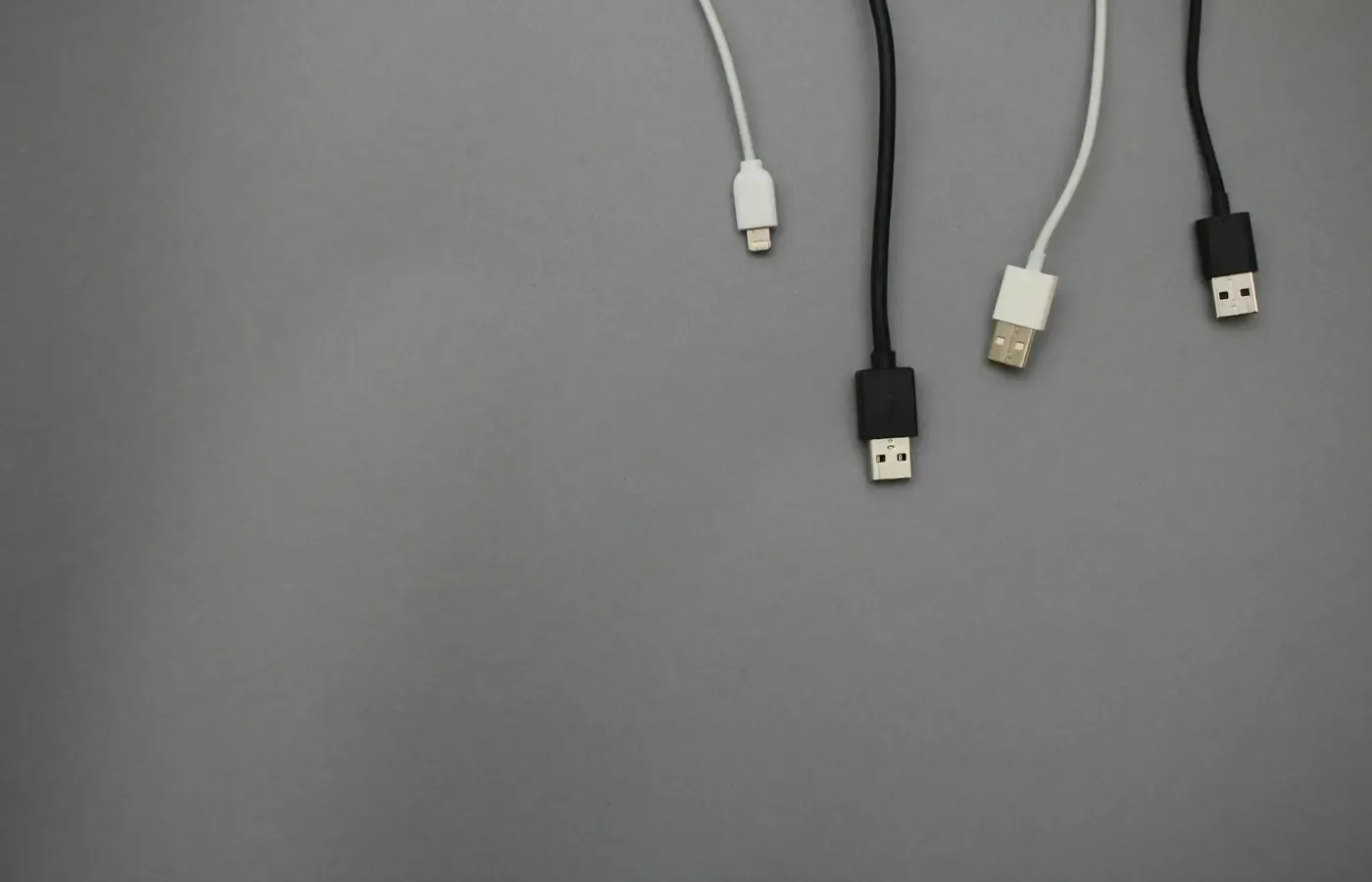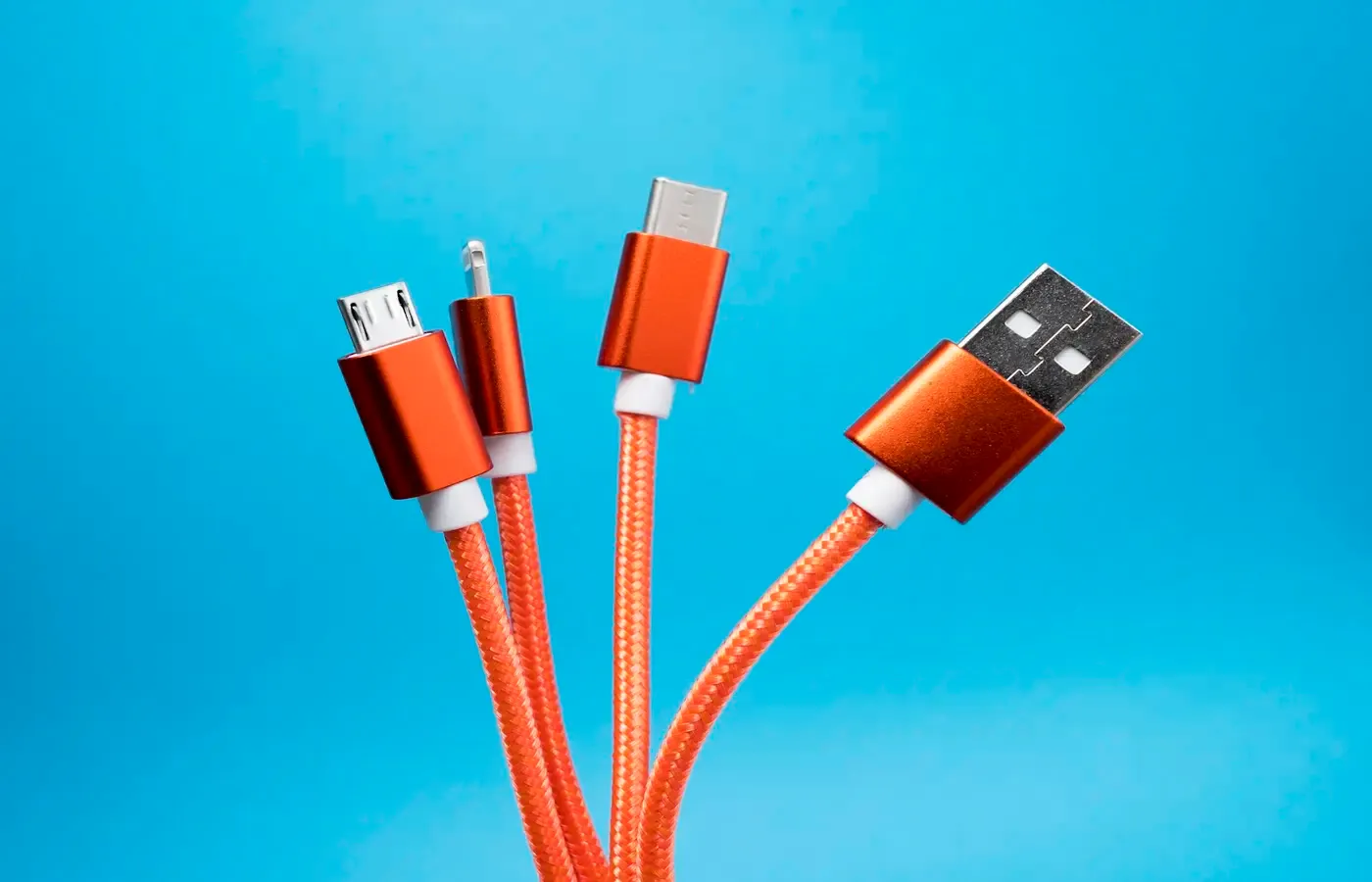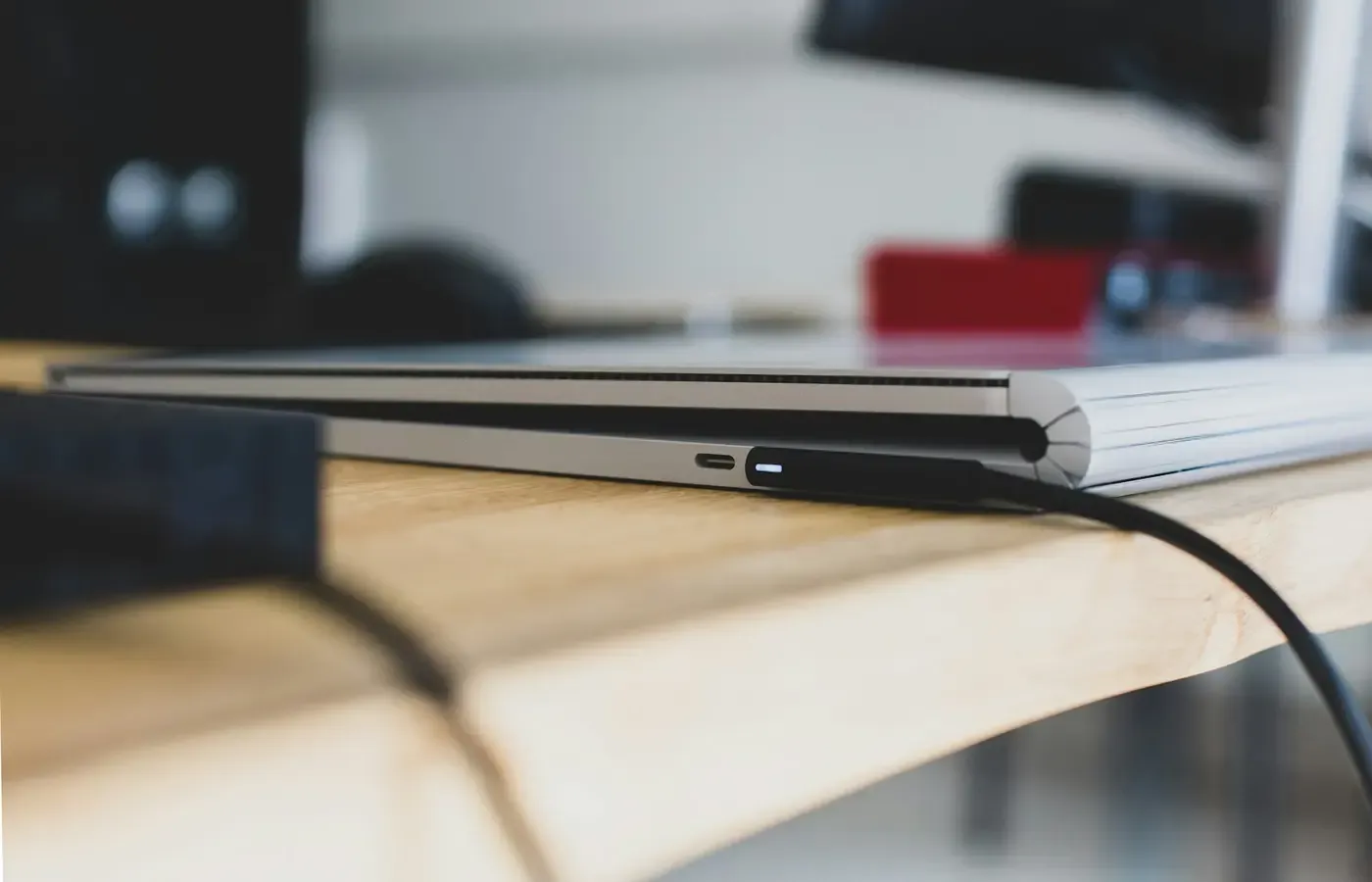
A USB-C cable can charge a laptop, move a backup painfully slowly, fail to connect a display, or do all three jobs well. From across a desk, many of these cables look identical.
That is not necessarily a fault in the cable. USB-C describes the connector’s physical shape, rather than a single, universal level of charging, data or display capability. The practical problem is that a cable often becomes part of a drawer before anyone records what it can actually do. Later, a monitor will not wake, an external drive will crawl, or a laptop will charge more slowly than expected—and the connector itself offers little explanation.
The useful way to buy or sort USB-C cables is not to ask whether a cable is “good”. Start with the job. Then check the documented capabilities of the cable and the devices at both ends. A cable with a clear wattage claim may be right for charging but unsuitable for fast storage. A fast data cable is not automatically evidence of video support. And a USB-C port on a computer is not, by itself, proof that the computer can send video to a monitor.
The USB-C plug is not a capability label
The USB Implementers Forum (USB-IF), the organisation behind USB specifications and certification programmes, is unusually direct on this point: not all cables have the same capabilities. It certifies cables for different purposes and says users must choose one with the capabilities needed for their particular USB environment.
That makes the neat, reversible connector both useful and misleading. It can be used in systems that carry power, data, audio or video, but any individual cable may support only a subset of those functions or support them at different limits.
A successful charging session tells you very little beyond the fact that the connected devices found some workable charging arrangement. It does not establish the cable’s maximum power capacity, data rate or display capability. Likewise, a cable that transfers a few photographs from a phone may still be a poor choice for a large backup drive.
The consequence for ownership is simple: stop treating the connector as the specification. Treat it as the starting point for finding the specification.
Begin with the job, not the cable rack
Before replacing a cable—or buying an expensive “everything” cable—identify the task that is currently failing or missing.
| Task | What to verify first | What a USB-C plug alone cannot tell you |
|---|---|---|
| Charging a phone, tablet or laptop | The cable’s stated wattage, plus charger and device charging support | Whether the cable can carry the maximum power your devices can negotiate |
| Moving files or making backups | A stated data rate, plus the computer and drive’s supported connection | Whether the cable is limited to basic USB 2.0 data speeds |
| Connecting a monitor | The computer port’s documented video support, cable documentation, and monitor or dock input | Whether the port can output video at all |
| Using a dock | The host port’s capabilities and the dock’s requirements | Whether one cable can deliver power, display output and fast peripherals together |
This order matters because the limiting part of the chain sets the result. USB-IF notes that using a certified cable does not add capabilities to the products connected to it. A capable cable cannot turn a charge-only or data-only port into a video output; nor can it make a lower-powered charger supply more than it supports.
For a cable already in your possession, inspect the printing on the cable body, its retained packaging, receipt or product listing. If none of those identifies its capabilities, the responsible answer is often “unknown”. That is less satisfying than a guess, but more useful than buying a second cable to solve the wrong problem.
Charging: read the wattage claim, then check the whole chain
For charging, the clearest cable-side clue is an explicit power claim in watts: for example, 60 W or 240 W. Those figures describe the cable’s stated power capability, not a promise that every connected device will charge at that power.
A CableCheckLab guide to cable labels says current USB-IF certified USB-C-to-USB-C cable power logos use 60 W and 240 W. It also notes that cables intended for more than 60 W require a 5 A electronically marked cable, while a 100 W/5 A claim may appear on older compliant products rather than under the current certified-cable logo system.
The distinction is worth making because a cable purchase is only one part of a charging decision. The charger must support the relevant power level and protocol; the receiving device must be designed to accept it; and the cable must be rated for the required power. The eventual result is negotiated among those parts.
That is why “240 W” should not be read as “this will charge my laptop at 240 W”. It means the cable is presented as suitable for that level of cable power capacity. A laptop may ask for far less. A smaller charger may supply far less. Another device may use a different charging arrangement entirely.
A sensible charging check
- Find the charging requirement or supplied-charger specification for the device.
- Check the charger’s stated output, rather than its total number of ports or marketing name.
- Buy a cable with a clearly stated wattage appropriate to that setup.
- Keep lower-power, known-working cables for smaller devices instead of discarding them unnecessarily.
For ordinary phone charging, a cable with a lower documented power rating may be entirely adequate. Paying for more capacity makes sense when it solves a present task—such as replacing a laptop charging cable—not simply because the larger number looks more future-proof.
For files and backups, find a stated data rate
Charging-oriented USB-C cables can be a false economy when the real job is transferring large files. Basic USB 2.0 data support remains common on charge-first cables, according to CableCheckLab. That may be perfectly reasonable for charging, synchronising a small device or connecting modest peripherals. It can be a poor fit for regular external-drive backups, video work or moving large archives.
Look for a stated data rate rather than relying on broad labels such as “fast charging” or “USB-C compatible”. CableCheckLab recommends explicit labels including USB 5Gbps, 10Gbps, 20Gbps, 40Gbps and 80Gbps. Those claims are easier to compare with a computer, drive or dock specification than older generation terminology.
The cable should match the slowest relevant component, but that does not mean every cable needs the largest available number. If an external drive or laptop port only supports a lower rate, spending more on a cable rated beyond that may not improve that particular setup. It may still be useful if you expect to reuse the cable with later equipment, but that is a convenience judgment, not an immediate performance gain.
For a backup workflow, write the cable’s verified role on a small label: “drive—10Gbps”, for example. This is unglamorous but can prevent a cable intended for charging from quietly becoming the bottleneck in a job you perform every week.
A USB-C monitor needs a complete display path
Display connections are where the connector’s apparent simplicity causes the most avoidable frustration. A USB-C-to-USB-C cable does not automatically connect a laptop to a USB-C monitor.
First, the computer or other source device needs a USB-C port that supports video output. Dell’s guide to video cable capabilities says USB-C video requires a port supporting DisplayPort Alt Mode, often shortened to DP Alt Mode. Dell also advises looking for a DisplayPort or Thunderbolt icon next to the port, or consulting the device specifications, because not every USB-C port supports video.
Second, the cable must support the required display use. Third, the monitor or dock input must support the planned connection. If a dock sits between the computer and display, it becomes another part of the path to verify.
Dell lists examples of what particular DisplayPort versions can support through a compatible USB-C connection: up to 4K at 60 Hz for DisplayPort 1.2, and up to 8K at 60 Hz for DisplayPort 1.4. These are not universal USB-C promises. They depend on the applicable DisplayPort support and the full combination of source device, cable, dock if used, and display.
The practical lesson is to investigate the source port before blaming the cable. A new cable cannot compensate for a USB-C port that lacks video output. Conversely, a capable computer port may still need a cable whose display support is clearly documented.
When a display setup does not work
Work through the chain in this order:
- Check the laptop, tablet or phone documentation for DisplayPort Alt Mode, Thunderbolt, or another explicitly supported display method.
- Check what the monitor or dock accepts at its USB-C input.
- Check the cable’s documented video, protocol or display compatibility.
- If a resolution and refresh target matters, check the stated conditions for the specific devices rather than assuming a USB-C connection will meet it.
If any link has no documentation, do not turn the missing information into a capability claim. Mark it unknown and, where possible, test the setup using a cable with known specifications or the device maker’s recommended connection method.
What packaging can tell you—and what it cannot
A package or product page is more useful when it separates power, data and display claims. A cable advertised only as “USB-C” has not supplied enough information for a demanding purchase decision.
Look for these details:
- Connector ends: USB-C-to-USB-C is different from USB-C-to-USB-A, USB-C-to-HDMI or other combinations. Confirm that both physical ends fit the planned connection.
- Power capacity: A wattage claim such as 60 W or 240 W gives a cable-side power indication.
- Data rate: Prefer an explicit rate, such as USB 5Gbps or 10Gbps, when moving files matters.
- Display or protocol compatibility: Seek explicit language when buying for a monitor, dock or specialised connection. Do not infer video support from charging or data claims.
- Certification information: USB-IF certification can be a useful quality and capability signal. But it does not replace checking device compatibility, and USB-IF says certified cables do not augment a connected product’s capabilities.
Certification is evidence worth considering, not a shortcut around the rest of the system. A certified cable may be the prudent choice when the job is high-power charging or an important dock setup. But the cable still has to fit your devices’ documented limits and ports.
Build a small cable kit instead of chasing one perfect cable
Most households do not need to replace every USB-C cable with the most capable one available. A modestly organised kit is often cheaper, clearer and easier to maintain.
Keep working cables that serve low-demand charging well. Separate them from cables used for external storage, display connections and higher-power laptop charging. Label known examples by function and specification if the printing is still legible or the documentation is available.
Buy a new cable when there is a documented missing job: a laptop needs a higher-power charging cable, an external SSD needs a cable with a stated higher data rate, or a display connection needs specifically documented support. If no present task is constrained, keeping what you have is a valid choice.
The expensive mistake is not buying a cable that is less capable than the maximum available. It is buying blindly, then treating a familiar connector as evidence that all the parts of a setup should work together.
Decision card: before adding another USB-C cable
Buy for charging when you know the charger and device requirements, and the cable has a suitable stated wattage.
Buy for storage or backups when the cable states a data rate that matches the port and drive you use.
Buy for a monitor or dock only after verifying video support on the source port, the cable and the display path.
Keep the cable if it reliably serves a low-demand role and there is no evidence that a higher specification would improve your actual use.
Treat it as unknown when its package, printing and documentation do not establish its capabilities. Unknown is not defective; it simply should not be entrusted with a task that depends on a specific limit.
Sources & methodology
This guide is based on published capability and compatibility guidance rather than first-hand cable testing. It does not assess particular cable brands, product reliability, retail prices or performance under specific conditions.
- USB-IF: Cables and Connectors — USB-IF’s description of cable certification and the limits of certification as a compatibility guarantee.
- CableCheckLab: USB-C Cable Labels Guide — guidance on reading stated cable power and data labels, including current certified-cable power logos.
- Dell: Understanding Video Cables — explanation of USB-C video through DisplayPort Alt Mode and the need to verify port support.
Where a cable, port, charger or display path lacks clear documentation, this article treats the relevant capability as unverified rather than assuming it is present.