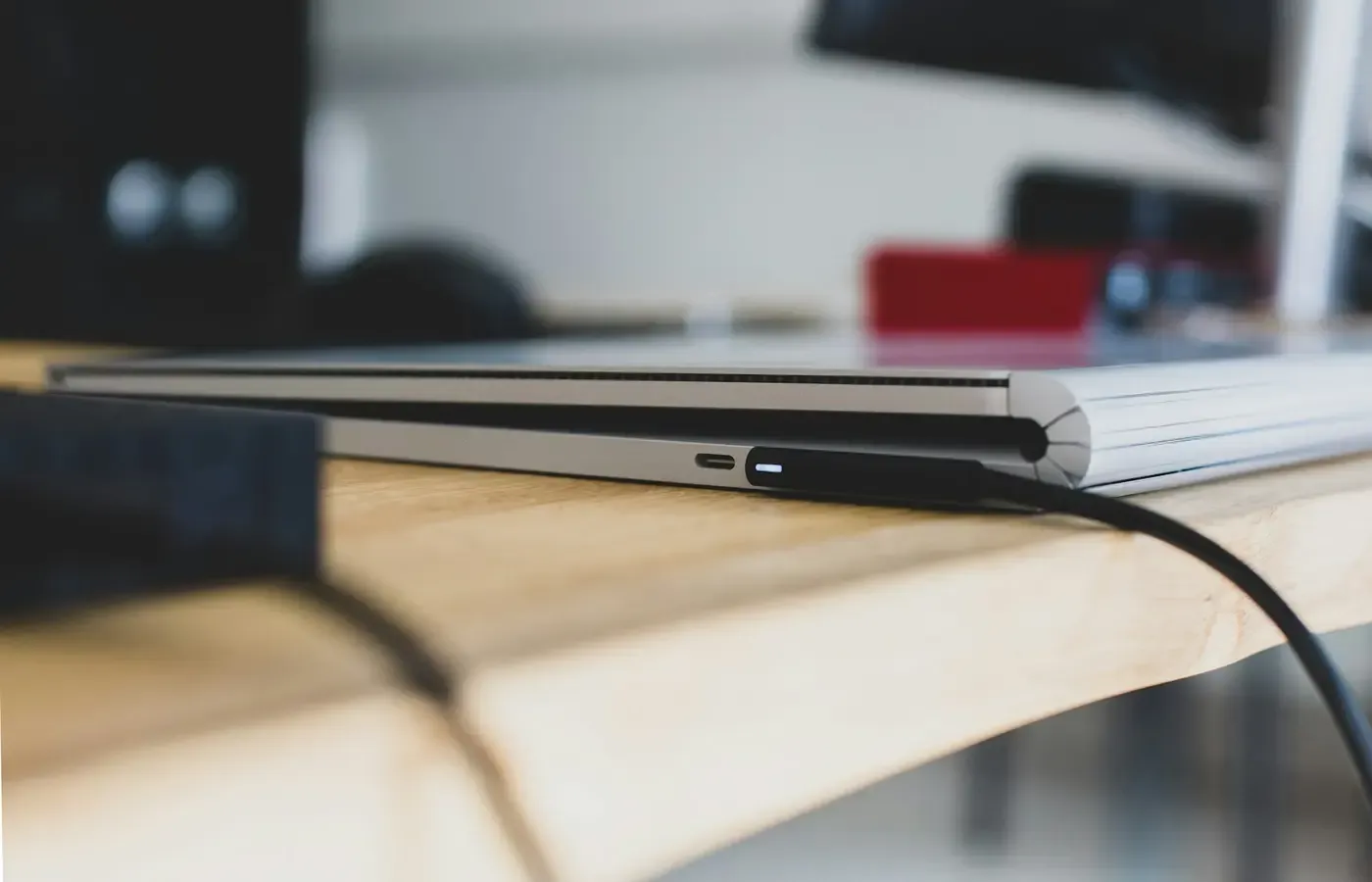
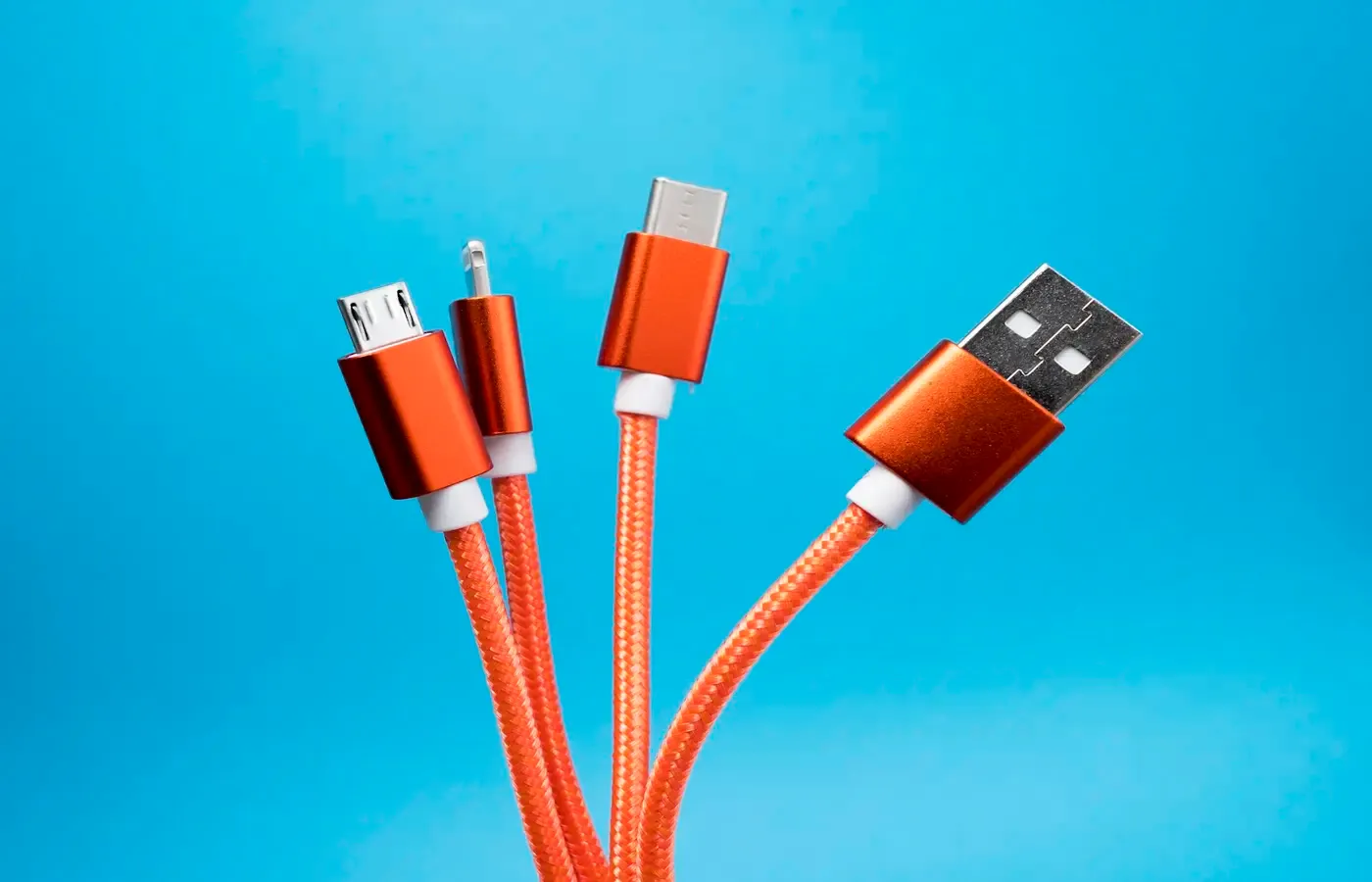
USB-C was meant to make device connections less messy. It has, at least physically: the small reversible plug now appears on phones, laptops, tablets, monitors, drives, docks and chargers.
But the neatness of the connector can conceal a more complicated reality. A USB-C cable may charge one device slowly, another quickly and a third not at all. It may connect an external drive yet make large transfers feel glacial. It may fit perfectly between a laptop and monitor while delivering no picture.
The reason is simple, if not always well communicated: USB-C describes the connector. It does not, by itself, tell you what power level, data speed or video function the equipment supports.
That distinction matters most when something stops working, or when a new cable, charger, hub or display seems like the obvious fix. Before replacing anything, identify the job you need the connection to do — charge, transfer data, run a display, or several at once — then check the whole chain. Compatibility is rarely a property of one plug alone.
The oval plug is only the starting point
USB Type-C is an industry-standard connector used to carry power and data through a single interface. But it can be implemented with different capabilities. Texas Instruments’ guide to USB Type-C distinguishes the connector from USB Power Delivery, USB data functions and alternate modes for features such as video.
This is why two ports that look identical can behave differently. One may be intended chiefly for charging and ordinary peripheral use. Another may support higher-speed data. A third may be designed to carry a display signal, or connect to a dock that handles charging, storage and external screens. The connector offers the possibility of these roles; the device maker decides which are implemented.
The same applies to cables. Some are suitable for routine charging but have modest data capability. Others are designed for more demanding connections. A cable’s physical interchangeability is useful, but it is not a complete specification.
As Engadget’s consumer explainer puts it, USB-C is not a single performance standard wrapped in one shape. A port may support power delivery, data transfer and video output, but none should be assumed merely because the port is oval and reversible.
The practical consequence is not that USB-C is a failure. It is that the old shopping shortcut — “it has the right connector, so it will work” — is no longer reliable for higher-demand tasks.
Treat charging, data and video as separate jobs
The most useful way to assess USB-C compatibility is to stop treating it as one question. Ask what you are trying to accomplish now.
| Job | What must be checked | A common mistaken assumption |
|---|---|---|
| Charge a device | Device input requirements, charger output, cable power capability | Any USB-C charger will charge at the maximum rate |
| Move files | Device port, cable data capability and the connected storage or peripheral | A cable that charges well must be fast for data |
| Connect a display | Computer or phone, cable, hub or dock, and display input | Any USB-C port can provide video |
| Run a dock | Power, data and video requirements across every connected component | A dock can add a capability absent from the host device |
A single setup can involve all four. A laptop connected to a USB-C monitor, for example, may need to receive power from the monitor, send video to its panel and exchange data with its built-in USB ports. A limitation in any part of that route can change the result.
That is why a cable that is perfectly adequate beside a bed or in a travel bag may not be the right cable for an external SSD or desk dock. It has not become defective; it is simply being asked to do a different job.
This framing also helps avoid unnecessary replacement. If a cable reliably charges a small device overnight, there is little consumer value in discarding it just because it is not intended for demanding display or storage work. Keep it, but do not mistake it for a general-purpose high-capability cable.
For charging, the limiting component sets the result
USB-C charging is often described in watts, but a large number on a charger is not a promise that every connected device will receive that amount of power.
USB Power Delivery, commonly called USB PD, is a standard that enables compatible equipment to negotiate power. Texas Instruments describes USB PD as extending USB-C’s power capabilities; supported systems can reach up to 240W and can combine power with high-speed data. That is a ceiling for supported implementations, not a baseline for every USB-C port, charger or cable.
In ordinary use, the result is limited by the least capable relevant component:
- The device determines what charging input it accepts.
- The charger determines what it can offer through its USB-C output.
- The cable must be capable of carrying the required power for that arrangement.
- A hub, dock or monitor can introduce its own power limits when it sits between charger and device.
A higher-rated charger can still be a sensible purchase if it will serve several current devices or replace several lower-power adapters. It is not automatically better value, however, if your device cannot use its extra capacity or if it costs more, is larger, or complicates a setup that already works.
For a laptop, tablet or other device with meaningful power demands, begin with the manufacturer’s documentation. Look for the stated charging method and recommended or supported input. Then inspect the charger’s technical specifications and the cable’s explicit power claim. If one of these documents is vague, the safe conclusion is not that the setup will fail, but that its maximum performance is unconfirmed.
There is another distinction worth keeping: charging at all is not the same as charging quickly enough for your routine. A low-power arrangement may maintain a device while idle or slowly replenish it overnight, yet prove inadequate during intensive work. Whether that is a problem depends on the task, not on the elegance of the connector.
A charging cable may be a poor data cable
A cable can be useful for charging while being a poor choice for transferring photos, making backups or using external storage. USB-C does not guarantee a particular data rate.
That matters because the failure mode is often subtle. The drive mounts. The file transfer starts. Nothing appears broken. It just takes longer than expected, perhaps enough to disrupt a backup or make a portable SSD feel less worthwhile.
The USB-C ecosystem includes a range of data capabilities, according to Texas Instruments, and Engadget similarly warns that the connector alone does not establish high-speed transfer performance. The sensible response is not to memorize every standards name. It is to require a clear data specification when data speed is the reason for buying the cable.
When comparing a cable for external storage, a dock or a fast peripheral, look for an explicit data-transfer claim in the packaging, specification sheet or exact manufacturer listing. “USB-C” alone answers only the plug question. It does not answer the data question.
Be wary, too, of treating a cable’s advertised charging capacity as evidence of its data performance. These are related only in the sense that the same cable may carry both power and data. One capability does not prove the other.
A modest ownership system makes this easier to live with:
- Keep low-demand cables for bedside charging, travel accessories and devices where speed is irrelevant.
- Reserve clearly specified data-capable cables for external drives, backups and desk setups.
- Label the cables you have already identified. A small tag such as “drive” or “dock” is more useful than trying to distinguish nearly identical black cables by memory.
- Replace a cable only when it fails your actual task, not because a newer standard exists.
This is less glamorous than owning a drawer full of ostensibly universal cables. It is usually cheaper and more reliable.
A USB-C monitor connection needs more than a USB-C cable
Video is where USB-C’s ambiguity can become especially frustrating. A laptop, tablet or phone may have a USB-C port, and a monitor may have a USB-C input, yet the two may not produce an image with the cable at hand.
Display output requires a supported video path. Texas Instruments identifies predefined alternate modes, including DisplayPort, and notes Thunderbolt as an advanced function that can be implemented through USB-C. The existence of those technologies does not mean every USB-C product includes them.
For a display connection, check four things:
- The source device. Its manual or technical specifications should state whether the relevant USB-C port supports video output and under what conditions.
- The cable. Do not infer video support from connector shape alone. Check the exact cable documentation, especially for a longer cable or one intended to carry several functions at once.
- Any hub or dock. It must support the desired display function and be compatible with the source device’s available connection capability.
- The display. Confirm what its USB-C input is intended to accept and whether its documentation states any relevant requirements.
A dock cannot reliably create display capability that the host device does not provide. Nor does a cable marked for fast data automatically establish that it will support a particular display arrangement. The required function has to be supported across the route.
When troubleshooting a blank screen, reduce the system before buying replacements. First connect the source device and display directly, if their manuals indicate that is a supported arrangement. Then try a cable with known, documented capability. Add the hub or dock only after the direct connection has been checked. This sequence will not solve every problem, but it can identify whether the uncertainty lies in the computer or phone, the cable, the dock or the monitor.
Remote specifications cannot establish the long-term reliability of a particular cable or dock, nor can they guarantee that a particular multi-device setup will behave identically after software or firmware changes. For an expensive desk setup, retain the retailer’s return terms and test the exact combination promptly.
Buy for the task, then label the cable
The best USB-C purchase is often not the most capable item available. It is the one whose documented capabilities match the job you actually need to do.
If you need a replacement cable for routine charging, prioritize the charging requirement of the device and the cable’s stated power capability. If you need a cable for storage, prioritize explicit data capability. If you need a desk cable for a display or dock, verify video support through the specifications for the entire chain rather than trusting the plug shape.
That leads to a restrained buying rule: buy one clearly documented cable for each demanding role, then keep working lower-demand cables in service. You may need a dedicated cable for a desk dock and another for a portable drive; you probably do not need to replace every cable in your home with one marketed around the newest USB standard.
The same restraint applies to chargers. A new charger makes sense when an existing one is underpowered for a documented device requirement, when you need an additional charging location, or when consolidating adapters genuinely reduces clutter. It is not a compulsory upgrade just because it offers a larger theoretical maximum.
USB-C can reduce waste and friction when you understand what the connection is being asked to do. Its promise is not that every cable is identical. It is that one connector can support many jobs — provided the device, cable and accessory are specified for the same one.
Questions worth asking before you replace anything
Will any USB-C cable charge my laptop?
Not necessarily at the rate or reliability you need. Charging depends on the laptop’s documented input requirements, the charger’s supported output and the cable’s power capability. A connection may supply some power without being suitable for demanding use. Check the exact documentation for the laptop, charger and cable rather than assuming USB-C alone settles the question.
Why does my USB-C cable charge a device but transfer files slowly?
Power and data are separate functions. A cable can be adequate for charging while offering limited data capability. For external drives, backups or high-bandwidth peripherals, look for a cable with an explicit data-transfer specification.
Can every USB-C port connect to a monitor?
No. Video output needs a supported video path, such as a documented alternate mode or a supported USB4 or Thunderbolt implementation. The source device, cable, any hub or dock, and the display all matter. Confirm the specifications for the exact components in your setup.
Do I need to replace all my USB-C cables with USB4 cables?
Usually not. USB4 may be relevant for a specific high-bandwidth task, but a working cable remains useful if it meets the needs of the device and job in question. Replace cables selectively when their documented capability is insufficient, not as a general response to a newer standard.
Sources & methodology
This guide distinguishes documented standards and implementation possibilities from claims about individual products. It does not recommend specific cable, charger, dock or monitor models because the supplied evidence does not establish current model-by-model performance, safety or durability.
- Texas Instruments, An Engineer’s Guide to USB Type-C: used for the distinction between the USB-C connector, USB Power Delivery, data functions and alternate modes, including its description of supported-system maximum capabilities.
- Engadget, A USB-C Port Isn’t A Guarantee Of High Speeds: Here’s Why: used as independent consumer-facing context for the point that a USB-C connector does not, by itself, guarantee speed or video capability.
For a particular purchase or troubleshooting case, the decisive evidence is the exact manual or technical specification for the device, cable, charger, dock and display involved.