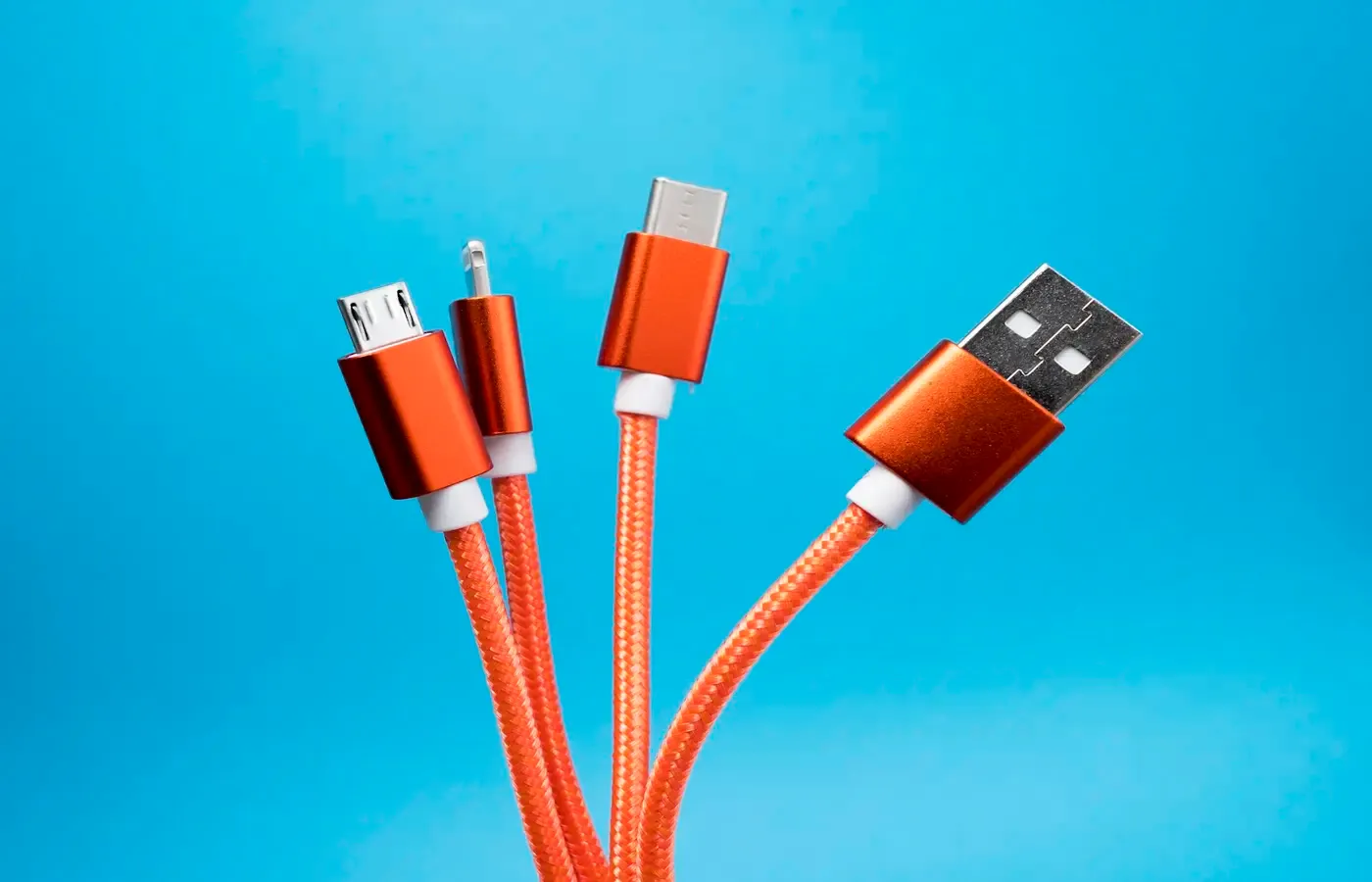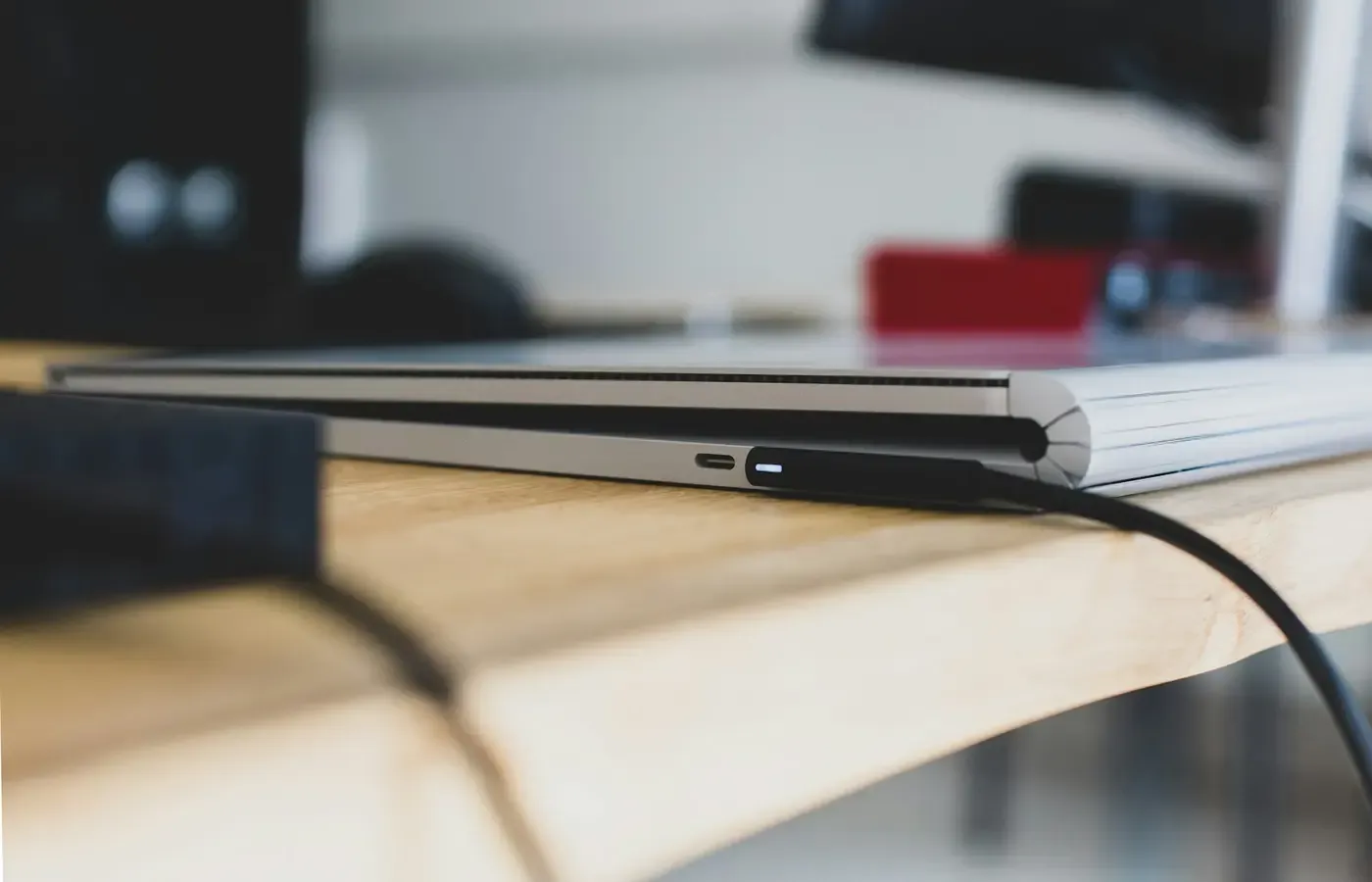
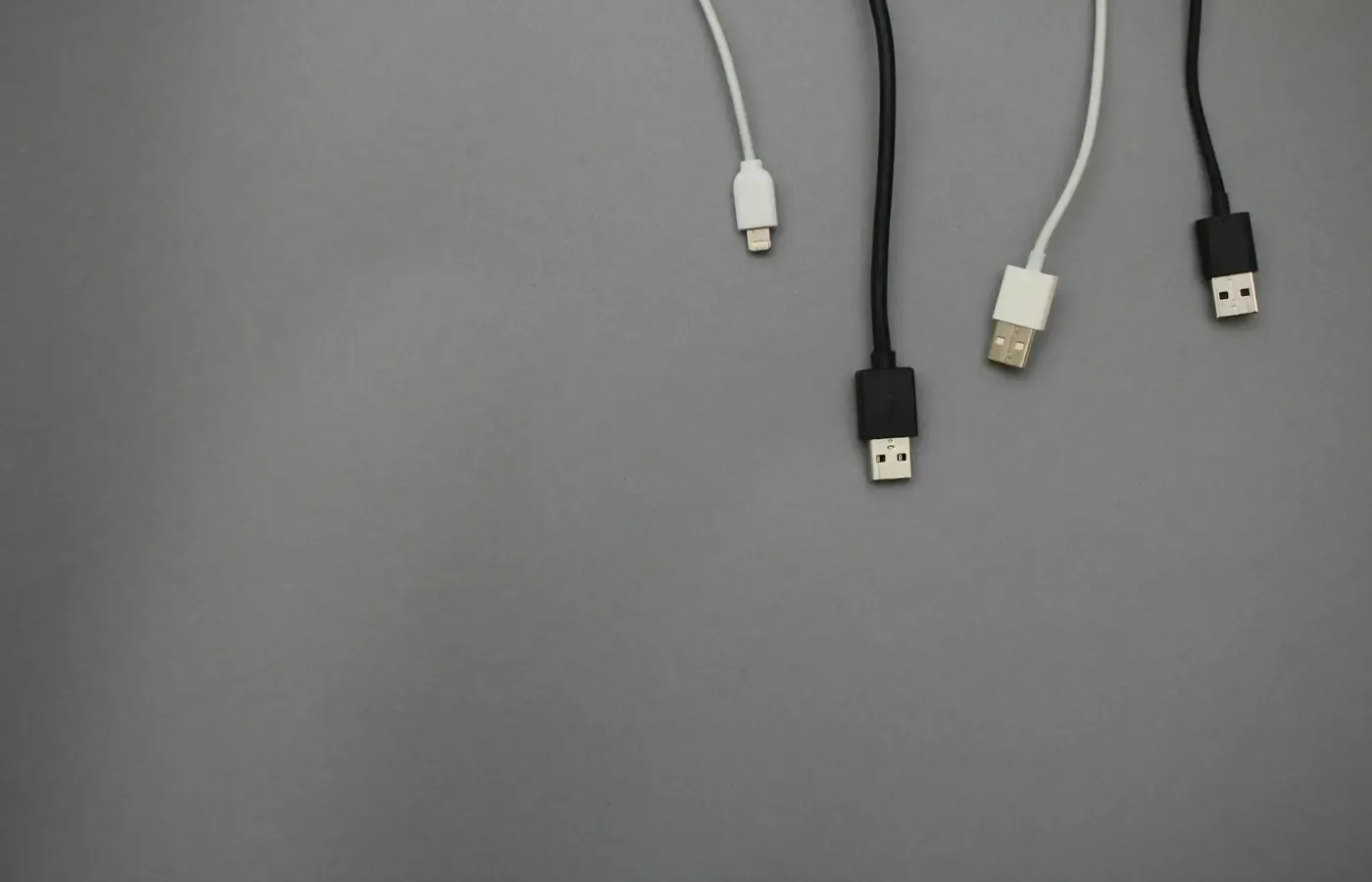
A USB-C cable can look interchangeable with another cable, fit the same ports and still be the wrong tool for the job. One may charge a laptop adequately but move files at basic USB 2.0 speeds. Another may support fast storage but not the charging power required by a larger computer. A third may carry power and data yet fail to produce an image on a monitor.
The confusion is understandable: USB-C describes the connector shape, not a complete promise about charging, data transfer or video. The useful question is therefore not, “Is this a USB-C cable?” It is, “What does this particular cable need to do between these particular devices?”
That distinction can save money and frustration. A cable replacement will not give a laptop video output if its USB-C port does not support it. Nor will an expensive high-wattage cable necessarily make an external drive faster. Before buying another cable, identify the task, then check the documentation for the computer or phone, charger, display or dock, and cable.
This guide concerns what documentation can establish. It cannot determine the long-term durability, electrical safety, certification status or real-world reliability of an untested cable listing. It also cannot substitute for model-specific support information from the maker of your phone, laptop, dock or display.
The USB-C connector is not a capability label
A matching connector is useful, but it is only the beginning of a compatibility check. USB-C connections can carry power, data and, in some setups, video. Those functions are related in a modern laptop dock, for example, but they are not the same specification.
SC&T’s cable guide illustrates the separation clearly. Its example cable is specified independently for power delivery, data bandwidth and video output. The company also warns that high-wattage charging does not itself guarantee video output.
That is the consumer consequence of USB-C’s flexibility: a cable that solves one problem may be entirely satisfactory for that purpose while being inadequate for another. A short charging lead supplied with a phone may be ideal by the bedside and a poor choice for copying video files to a fast SSD. That does not make it defective.
Similarly, a cable advertised with a large wattage figure tells you something about its claimed charging role, not automatically about file-transfer speed or monitor support. MelGeek’s explainer makes the same distinction: power ratings and data-transfer specifications should be read separately.
Start with the job, not the cable
The easiest way to avoid buying on connector shape alone is to name the task that is failing or that you want to perform. The cable requirements change substantially depending on the task.
| What you need to do | What to verify first | What a cable label alone cannot prove |
|---|---|---|
| Charge a phone or laptop | Device input support, charger output and cable power rating | That the device will use the charger’s maximum output |
| Copy files or use external storage | The data capability of both ports and the cable | Sustained real-world transfer speed under every condition |
| Connect one external display | Source port’s video support, display or adapter input, and cable video claim | That every resolution and refresh-rate combination will work |
| Use a dock | Laptop support, dock specifications, charger capacity and cable support | That all connected peripherals will work at their individual maximums |
For data, product documentation may use labels such as USB 2.0 or 480Mbps, 5Gbps, 10Gbps, 20Gbps, 40Gbps, 80Gbps, USB4 or Thunderbolt. These labels indicate claimed categories of data capability; they do not mean every connected device will reach a headline rate. The ports at both ends, the storage device, dock design, operating system and other attached peripherals can all become limiting factors.
A practical rule follows: do not buy a “better” cable until you can describe the missing capability. “My desk cable is slow with an SSD” is a data question. “My laptop is losing charge while connected to a dock” is a power-chain question. “My monitor says no signal” is a video-path question. Each has a different place to investigate.
Charging is a three-part compatibility check
For charging, the cable is one part of a chain:
- The device must accept charging through that USB-C port and support the relevant charging method.
- The charger must offer suitable power through the port being used.
- The cable must be rated to carry the required power.
If a laptop charges slowly, first find its support page, manual or original charger specification. Look for its supported USB-C charging input, if any. Then read the charger label or official documentation, paying attention to the output of the specific port rather than the charger’s largest number on the box. Multi-port chargers may distribute available power differently when several devices are connected.
Finally, inspect the cable listing or packaging for an explicit power rating. A listing that says 60W, 100W or 240W is evidence of a claimed charging-power limit, not of data speed. As MelGeek notes, a cable may carry high charging power while transferring data at only USB 2.0 speed.
For higher-power charging, cable electronics can matter. SC&T says that charging above 60W typically requires a cable with 5A support and an E-Marker chip, which lets connected devices identify cable capabilities. That is useful guidance, but not a reason to infer the precise construction of an unlabelled cable. Buy on a documented rating when your laptop requires more than basic phone charging.
It is also worth separating a charging limitation from a hardware limitation. Cable Matters’ overview of USB Power Delivery notes that compatibility depends on device hardware and advises checking device specifications. A new cable cannot make a USB-C port accept a charging standard the device does not support.
Do not blame the cable too soon
Keep your existing cable if it charges the device reliably at the speed you need and you do not need it for fast data or video. Replacing a functional bedside cable simply because another one advertises 240W is unlikely to improve a phone’s ordinary charging experience if the phone, charger or both are already the limit.
Before replacing a cable for slow laptop charging, try a known suitable charger with the device alone, without a dock or several other accessories attached. If charging improves, the dock, charger allocation or connected load may be the issue. If it does not, consult the device’s documented charging support before buying cables speculatively.
For files and storage, look for a data-speed claim
The most common surprise is a cable that charges normally but feels painfully slow when moving files. This can happen because basic USB 2.0 data capability is enough for many everyday tasks: syncing a phone, connecting simple peripherals or providing a data path alongside charging. It is not designed around the needs of fast external storage.
When buying or identifying a cable for file transfers, look for a stated data standard or speed. Useful labels include USB 2.0/480Mbps, 5Gbps, 10Gbps, 20Gbps, 40Gbps and 80Gbps, as well as USB4 or Thunderbolt where applicable. If the listing gives only a power figure, treat data capability as unknown rather than assuming it is fast.
PCWorld’s cable roundup offers a product-specific illustration of the difference. Its testing described one charging-oriented cable as limited to USB 2.0-speed transfers, while other individually tested cables supported higher-speed data and Thunderbolt storage use. Those results apply to the named products and PCWorld’s test conditions, not to all cables of a similar appearance or price.
For an existing unmarked cable, documentation is better than guesswork. Check the original product page, receipt or packaging. If that has disappeared, connect it to a known data-capable device and see whether the computer recognises the peripheral. That can establish whether it carries some data, but not conclusively identify its maximum standard or explain every bottleneck in a particular setup.
A new cable is justified when the present one has a documented low data rate and you routinely move large files or use a fast external drive. It is less justified when the drive itself, the computer port or the source files are the evident bottleneck.
A USB-C display setup has more than one check
Video is where connector-shaped assumptions become especially expensive. A USB-C display connection involves at least three participants: the source device, such as a laptop; the display, adapter or dock; and the cable between them. All need compatible support for the intended setup.
Start with the source device. Its documentation should explicitly describe external-display support through that USB-C port, often using terms such as DisplayPort Alt Mode, USB4 or Thunderbolt. Do not infer video output from the presence of a USB-C socket or from the fact that the port charges the computer.
Next, examine the monitor, dock or adapter documentation. A USB-C monitor may accept video through USB-C; a USB-C adapter may require a source that can send video; and a dock may have limits that depend on its connection, power supply and the displays attached.
Then read the cable’s specification. SC&T distinguishes video support from both high-wattage charging and data bandwidth in its guidance. ACT Connectivity’s USB-C explainer similarly discusses DisplayPort Alt Mode separately from USB bandwidth categories. A cable intended only for charging should not be assumed to be a display cable.
Even when all three parts claim support, the desired outcome still needs checking. Resolution, refresh rate, cable length, display settings, dock architecture and operating-system support can affect what works. An advertised maximum should be treated as a capability claim under suitable conditions, not as a guarantee for every desk arrangement.
When an external display does not work
Do not begin by buying the highest-wattage cable you can find. Wattage is not a video specification.
Instead, work through the path in order:
- Confirm that the laptop or phone’s specific USB-C port supports display output.
- Confirm that the display, dock or adapter accepts the connection method you are attempting.
- Check whether a dock needs its own power supply for the intended use.
- Use a cable with an explicit video, DisplayPort Alt Mode, USB4 or Thunderbolt claim where the setup requires it.
- Check display input selection, operating-system display settings and available updates.
- If possible, test one known-compatible part at a time rather than changing the cable, dock and adapter together.
A replacement cable is sensible when the existing one is documented as charge-only, basic-data-only, damaged or unsuitable for the video mode required. It is not a reliable fix for an absent capability in the source device.
The sensible cable drawer is smaller than it sounds
You do not need a separate premium cable for every USB-C device. Most households can reduce uncertainty by keeping cables according to jobs rather than by collecting vaguely “universal” leads.
A basic, reliable charging cable can remain assigned to low-demand charging. A documented higher-power cable can stay with a laptop charger. A clearly labelled higher-data or display-capable cable can live at the desk with the dock or external drive. Labelling them yourself—“charge,” “data,” or “dock”—may be more useful than trying to decode an identical-looking bundle months later.
Buying used can be reasonable for a cable from a trustworthy source only when the exact model and its specifications can still be verified. For high-power laptop charging or a work-critical dock, an unmarked used cable with no traceable documentation is a poor economy. The problem is not age alone; it is the inability to establish what it was designed to carry.
Repair is usually limited to retiring a cable with visible damage, loose connectors or intermittent behaviour rather than attempting a home repair. USB-C cables may contain fine conductors and, in some cases, electronics. If a cable is unreliable, replacing it with a clearly specified one is generally the cleaner exit.
A decision card before you replace anything
Keep the cable when it reliably performs the job you actually use it for, such as ordinary charging.
Check the documentation when you need a faster drive, external display or dock. Look separately for device-port support, charger output and cable power, data and video claims.
Replace the cable when its documented specification falls short of a repeatable need: a low-speed cable for fast storage, an under-rated cable for a supported laptop charger, or a non-video cable in an otherwise compatible display path.
Do not buy yet when the device documentation does not confirm the missing capability. A cable cannot add USB Power Delivery compatibility, video output or a faster port to hardware that lacks it.
USB-C is useful precisely because one small connector can serve many roles. But that flexibility asks more of the buyer than connector matching. Treat the cable as a specified part of a system, not a generic accessory, and you can spend only where a documented limitation exists.
Sources & methodology
This guide is based on the supplied research package, which includes cable-maker and retailer explainers plus an independent cable roundup. Company materials are used here to describe their stated guidance and product-specification categories, not as proof that one company’s cables are superior or that every USB-C setup behaves identically.
Key references include SC&T’s guide to charging, data and DisplayPort Alt Mode, MelGeek’s explanation of USB-C data specifications, Cable Matters’ USB Power Delivery overview, ACT Connectivity’s USB-C explainer, and PCWorld’s product-specific cable testing roundup.
No first-hand testing was conducted for this article. The available evidence does not establish the durability, safety, certification status or long-term reliability of individual untested cables. For a particular phone, laptop, display or dock, consult the manufacturer’s current documentation for that exact model and market.