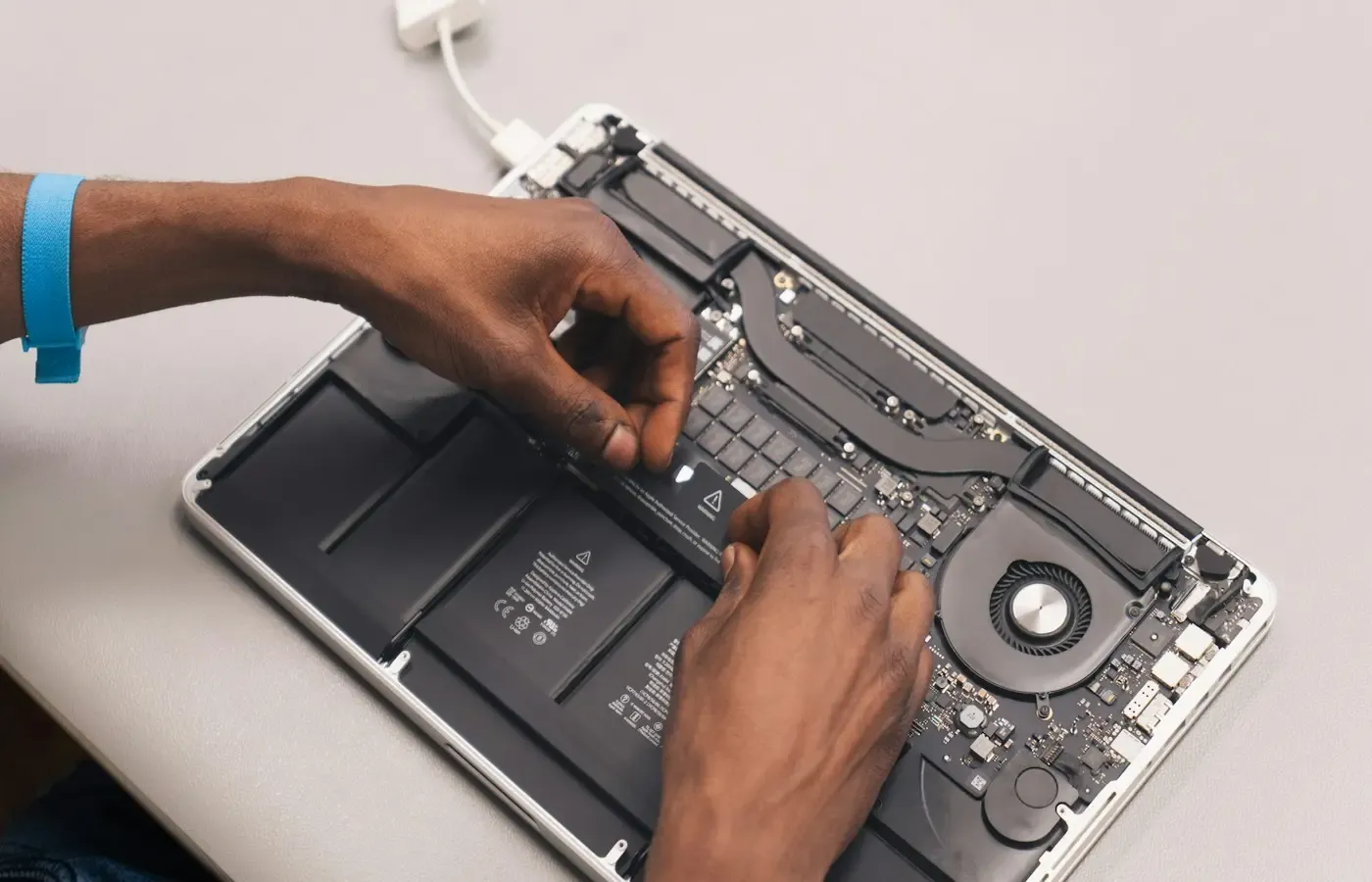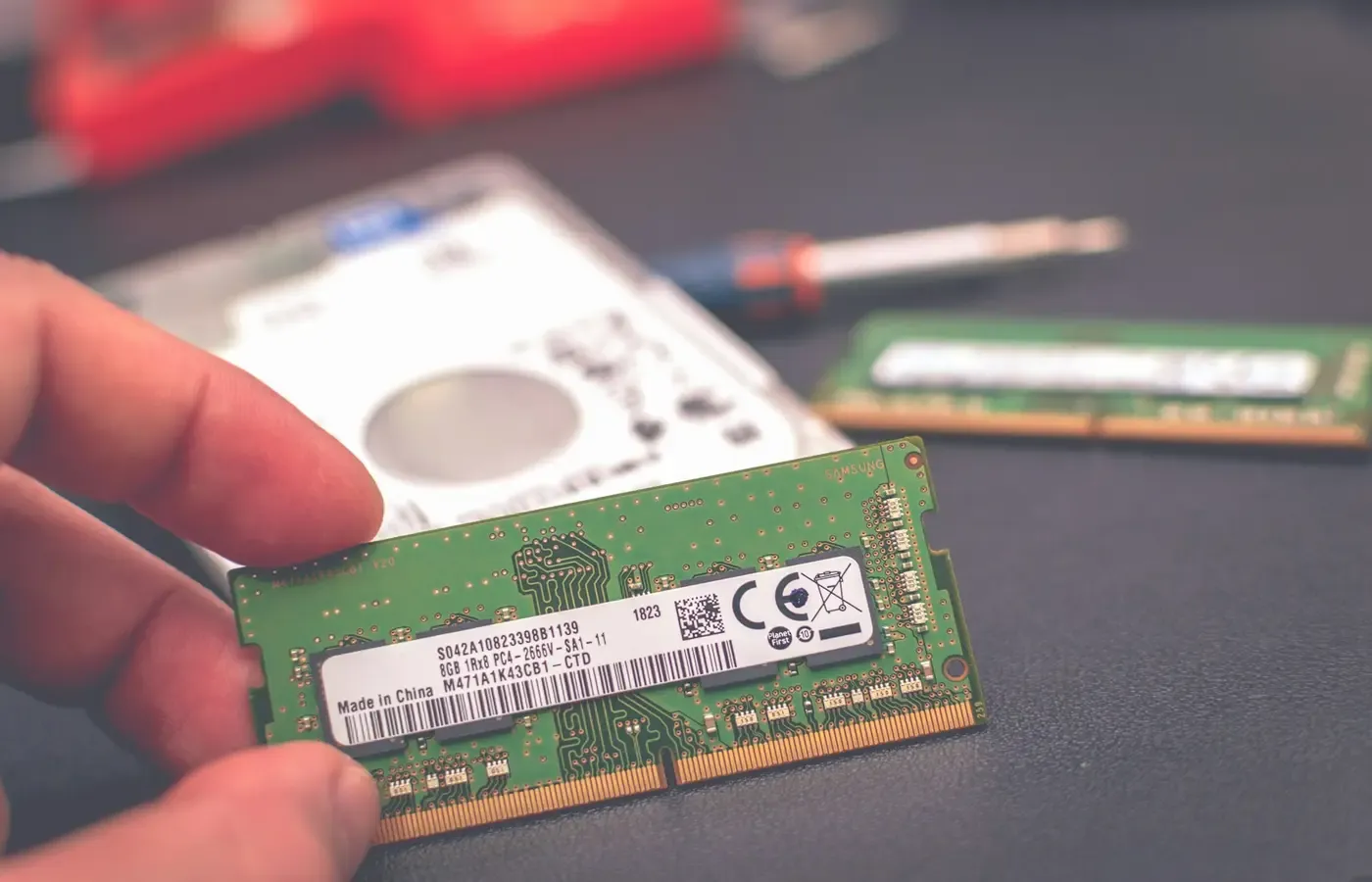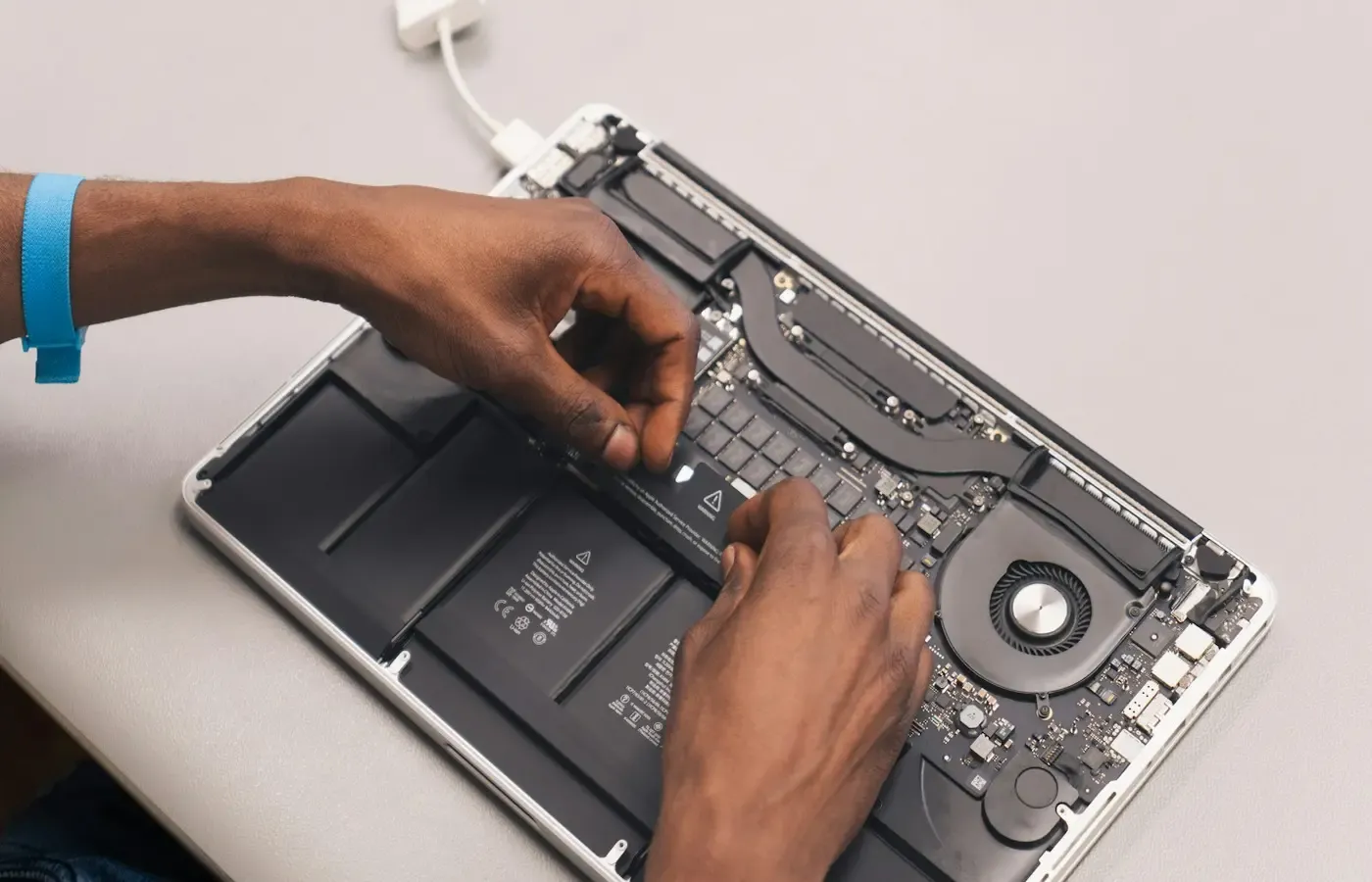
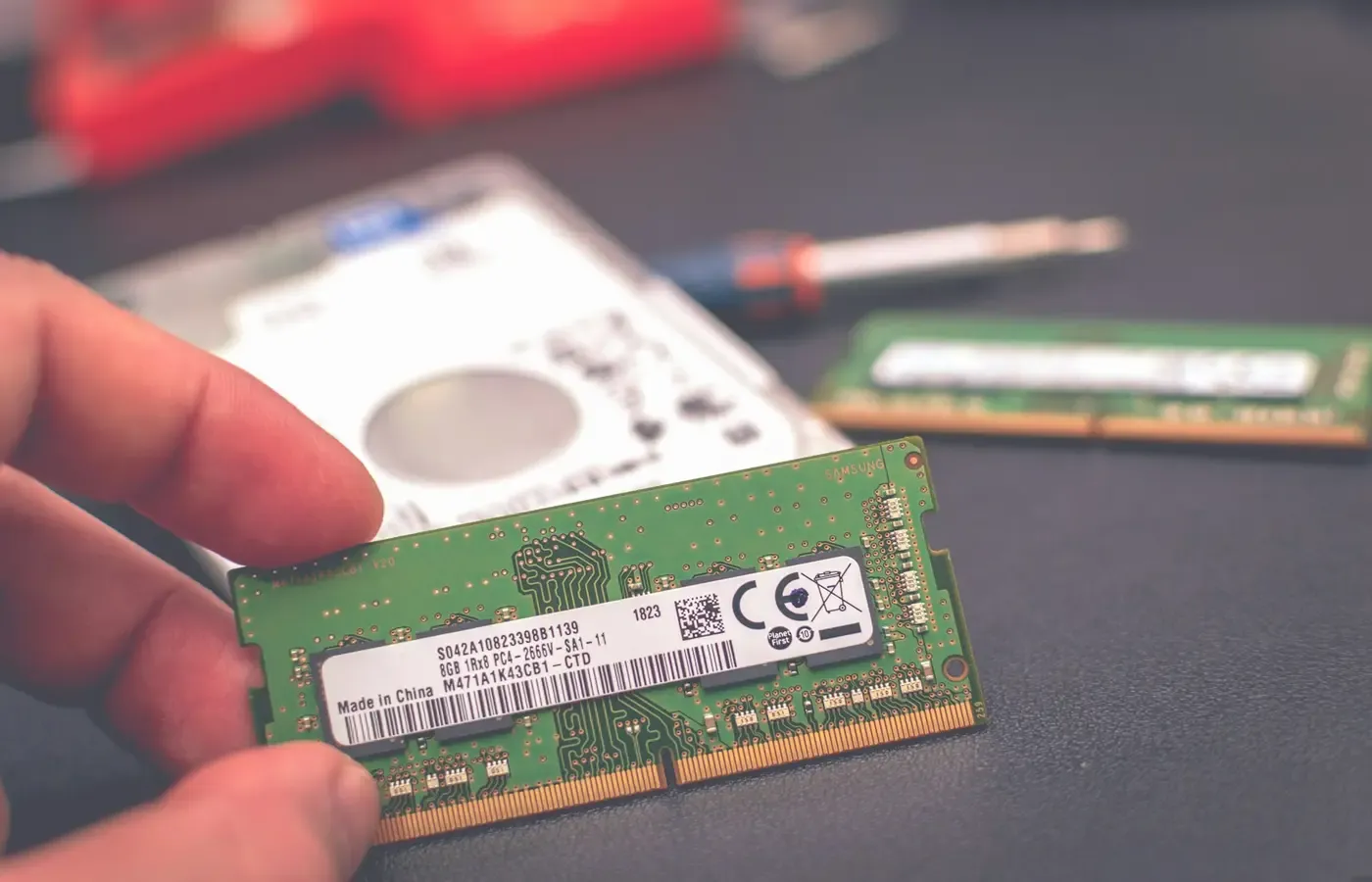
An older laptop does not necessarily need replacing because it feels slow or its storage is full. A compatible SSD can restore usable space and make an ageing hard drive less of a liability; additional memory can make a machine less frustrating when several applications are open at once. Both can be comparatively modest repairs beside the cost and disruption of a new computer.
But “upgradeable” is not a property of a laptop brand, or even usually a whole product line. It is a property of a particular machine: its generation, screen size, processor configuration, regional variant and internal layout. Two laptops sold under a similar name may have different memory arrangements, storage slots and service procedures.
That makes a laptop RAM and SSD upgrade a verification exercise before it becomes a shopping exercise. The useful question is not simply whether an upgrade is possible. It is whether a compatible part addresses the problem you actually have, without pouring money into a computer whose battery, display, charging system or software support is already nearing its own limit.
Start with the exact laptop, not the name on the lid
“ThinkPad”, “Pavilion” or “MacBook” is not enough information to buy memory or a drive safely. Find the full model number or machine type from the label on the underside, the original invoice, firmware information, or the operating system’s system-information tool. Record the configuration too, particularly the processor, installed memory and storage capacity.
Then look for the manufacturer’s specification sheet, service manual and, where available, parts catalogue for that exact machine. These are the documents that can establish the details that matter:
- whether memory is soldered, slotted, or partly soldered and partly slotted;
- the number of memory slots and supported module type;
- whether the existing storage is removable;
- whether there is a vacant second storage slot or drive bay;
- the supported physical drive format; and
- the documented order for opening and reassembling the chassis.
This is slower than entering a family name into a retailer’s compatibility finder, but it is the better place to begin. A commercially operated configurator can be a useful cross-check once you know the model. Laptop Mag describes Crucial’s Advisor tool as a way to identify compatible memory and SSD specifications, while also noting that the tool recommends Crucial’s own products. Treat such a result as a specification prompt, not as the final authority on your laptop or the only part worth buying.
PCMag’s guide to laptop upgrades offers a useful broad distinction: laptops with SO-DIMM slots can generally accept replaceable laptop memory modules, while many thin machines use soldered memory. The publication notes that LPDDR-labelled memory is commonly soldered. That is a reason to investigate, not a substitute for the service documentation: some machines combine soldered memory with an additional slot, and model-specific documentation should settle the question.
Diagnose the bottleneck before buying a part
An SSD and more RAM solve different problems. It is possible to benefit from either, both, or neither.
Storage is the likely issue when space is running out
Start with the operating system’s storage settings. If free capacity is persistently low, a larger drive can provide room for files, applications and system updates. If the current drive is old, reporting health warnings, or repeatedly causing disk-heavy slowdowns, replacing it may also be sensible preventive maintenance.
A storage upgrade does not make an underpowered processor more capable, repair a hot-running cooling system, or cure poor Wi-Fi. Nor does capacity alone explain every sluggish startup. The important distinction is between a drive that is short of space, a drive that is failing, and a laptop delayed by some other part of the system.
If the existing drive is a mechanical hard disk rather than solid-state storage, moving to a compatible SSD may make everyday loading and startup feel less constrained. That still is not a promise of a particular speed increase: the result depends on the laptop, its interface, the operating system, the condition of the old drive and the work being done.
Memory matters when multitasking is the pressure point
RAM holds the applications and data currently in use. If a laptop becomes strained when you switch among a browser with many tabs, office work, video calls and photo tools, memory pressure may be part of the problem. PCMag describes additional RAM as a common upgrade that can improve multitasking and responsiveness; HP similarly presents memory upgrades as particularly relevant to multitasking in its laptop upgrade guidance.
Check the operating system’s memory monitor while doing your ordinary work, not just immediately after restarting. Sustained high memory use, frequent swapping to storage, or slowdowns that appear only with a familiar set of applications open together make RAM a more plausible candidate.
This remains diagnosis, not certainty. An overloaded browser extension, insufficient free storage, malware, an overheating processor, a degrading battery or a failing drive can all produce a laptop that feels slow. Remote specifications cannot diagnose an individual computer.
What may be replaceable inside
Laptop internals are less standardised than desktop components. The categories below are useful for understanding documentation, but they do not establish what fits a particular machine.
| Component arrangement | What it usually means | What to verify |
|---|---|---|
| SO-DIMM memory slots | Memory modules may be removable or expandable. | Slot count, supported type, speed requirements and maximum configuration. |
| Soldered memory | The installed RAM is attached to the mainboard. | Whether there is also an empty expansion slot; many machines have none. |
| One soldered memory portion plus one slot | Some memory is fixed, but capacity may still be increased. | The size of fixed memory and the supported module for the remaining slot. |
| M.2 SSD | A compact drive fitted to the mainboard. | Physical length, connector type, interface and whether the slot is occupied. |
| 2.5-inch SATA drive bay | A larger, cable-connected storage location in some laptops. | Bay, cable, caddy and drive-height requirements. |
| Second storage slot | A second drive may be added without removing the original one. | Whether the slot is physically present and supports the intended drive. |
The phrase “M.2 SSD” is not sufficient for a purchase. M.2 describes a physical format, while the interface and supported drive length remain model-specific. Likewise, a laptop may have space that looks available but lacks the connector, cable or mounting hardware needed to use it.
For memory, HP’s guidance is appropriately basic and important: establish the supported maximum RAM and the required module type before buying. Memory that physically resembles the right part may still be incompatible. Do not assume that a laptop can use the maximum capacity advertised for a newer model in the same family.
Compatibility is more than a capacity number
A successful upgrade requires a small chain of decisions to be correct at the same time.
For RAM, check the exact memory generation, module format, number of slots, present configuration and manufacturer-supported capacity. If you are replacing rather than adding modules, keep a note of the original parts. They can be useful for troubleshooting, resale, or returning the laptop to its initial configuration.
For storage, identify whether you are replacing the existing drive or adding another. Adding a second drive can be the lower-risk option when it is supported: the working operating-system drive remains in place, and the new one can be used for files or projects. Replacing the system drive may be the only route on many slim laptops, but it brings a migration task with it.
Before removing a system drive, make a backup that you have actually checked. Decide whether you will clone the existing installation or reinstall the operating system and restore your files. Either route can be reasonable, but neither should be improvised after the old drive has been removed.
If disk encryption is enabled, ensure you can access the recovery key and understand the recovery process before changing hardware. Keep installation media, account credentials and any needed software licences available. A storage upgrade is often a good time to clear old files and start with a more orderly backup arrangement, but it should not be the first time your only copy of important work is tested.
The physical work may be easy—or decidedly not
Online guides can make laptop upgrades look universal: remove a few screws, lift the cover, swap the part. Some machines are designed much like that. Others use fragile clips, hidden screws, tightly routed cables or layouts that require the internal battery to be disconnected before components are handled.
The service manual for your laptop should determine the procedure. It should show screw locations, the order of removal, whether the battery must be disconnected, component positions and reassembly steps. If no proper manual is available, that absence is itself relevant to the repair decision.
Bestware’s XMG disassembly guidance is an example of a manufacturer documenting bottom-cover access for its own machines. It says that its relevant procedures and instructions are available for XMG laptops. That does not establish that another maker’s laptop is equally accessible, or that opening it has the same warranty implications.
Do not generalise warranty rules from another brand or country. Check the warranty terms that apply to your purchase and local consumer protections if they are relevant. If the machine is still valuable, or the task involves an unfamiliar chassis, a repair shop can be a sensible choice. Ask the shop to quote for diagnosis, parts, labour, data migration and post-repair testing separately where possible.
After fitting a part, confirm that the firmware and operating system recognise the expected memory or storage. Test ordinary work, sleep and restart behaviour, charging and any ports or controls disturbed during disassembly. Keep the old drive or memory until the replacement has proved stable and your data is safely available.
Decide whether the repair buys useful time
An upgrade earns its cost when it removes a real constraint from a laptop that is otherwise dependable enough for your needs. It merely postpones a more expensive problem when several major faults are gathering at once.
Use this assessment before buying parts or paying for labour:
- Current task: Does the laptop fail at a task you genuinely need, or does it simply feel less quick than a newer machine?
- Verified bottleneck: Have storage capacity, drive condition and memory use pointed toward the proposed upgrade?
- Physical path: Does the exact manual confirm that the component is replaceable and accessible?
- Whole-machine condition: Are the battery, screen, keyboard, charging port, hinges and cooling system still serviceable?
- Software future: Can the machine continue to run the operating system and applications you require with appropriate security support?
- Total cost: Include the part, tools, backup media, installation labour and any related repair—not only the headline cost of a memory module or SSD.
- Exit route: If the upgrade does not resolve the problem, can the part be reused, returned where permitted, or retained for another compatible machine?
An SSD upgrade can be worthwhile even where RAM is soldered. Likewise, a RAM addition can help a laptop whose storage remains adequate. But neither repair cures a cracked display, unreliable charging, a poor battery, an obsolete application requirement or a processor that cannot meet your workload.
There are also good outcomes that do not involve upgrading. You may keep the laptop as it is after removing unused software and files; replace a failing battery or charger first; install a used compatible part from a reputable source; repurpose the machine for lighter work; or replace it with a model chosen partly for documented repair access and parts availability.
A bounded answer before you open the cover
A laptop RAM or SSD upgrade is often one of the more practical ways to extend a computer’s useful life, especially when a machine is otherwise in good condition. Storage is frequently the easier upgrade to find on laptops with replaceable drives; memory is more constrained by soldered designs and limited slots.
The decision should rest on four confirmed facts: the exact model’s internal design, the component specification it supports, evidence of the present bottleneck and the condition of the rest of the machine. If those point in the same direction, an upgrade can be a measured repair rather than a speculative purchase. If they do not, preserve your data, address the actual fault first, and do not let a cheap-looking component turn into an expensive detour.
Sources & methodology
This guide does not assess the upgradeability of any particular laptop. It uses manufacturer and specialist guidance to explain a verification process; model-specific memory limits, storage interfaces, disassembly steps, warranty terms, part availability and repair costs must be checked for the reader’s exact laptop.
- PCMag, “How to Upgrade Your Laptop: A Part-by-Part Guide”, consulted for its general explanation of SO-DIMM and soldered laptop memory.
- HP, “How to Upgrade Your Laptop: A Comprehensive Guide”, consulted for manufacturer guidance on confirming supported RAM capacity and module type.
- Laptop Mag, “How to Tell If You Can Upgrade Your Laptop”, consulted for its description of a commercial compatibility configurator and its limitations.
- bestware Help Center, “Disassembly for SSD and RAM upgrades”, consulted as an example of maker-specific access documentation for XMG laptops.