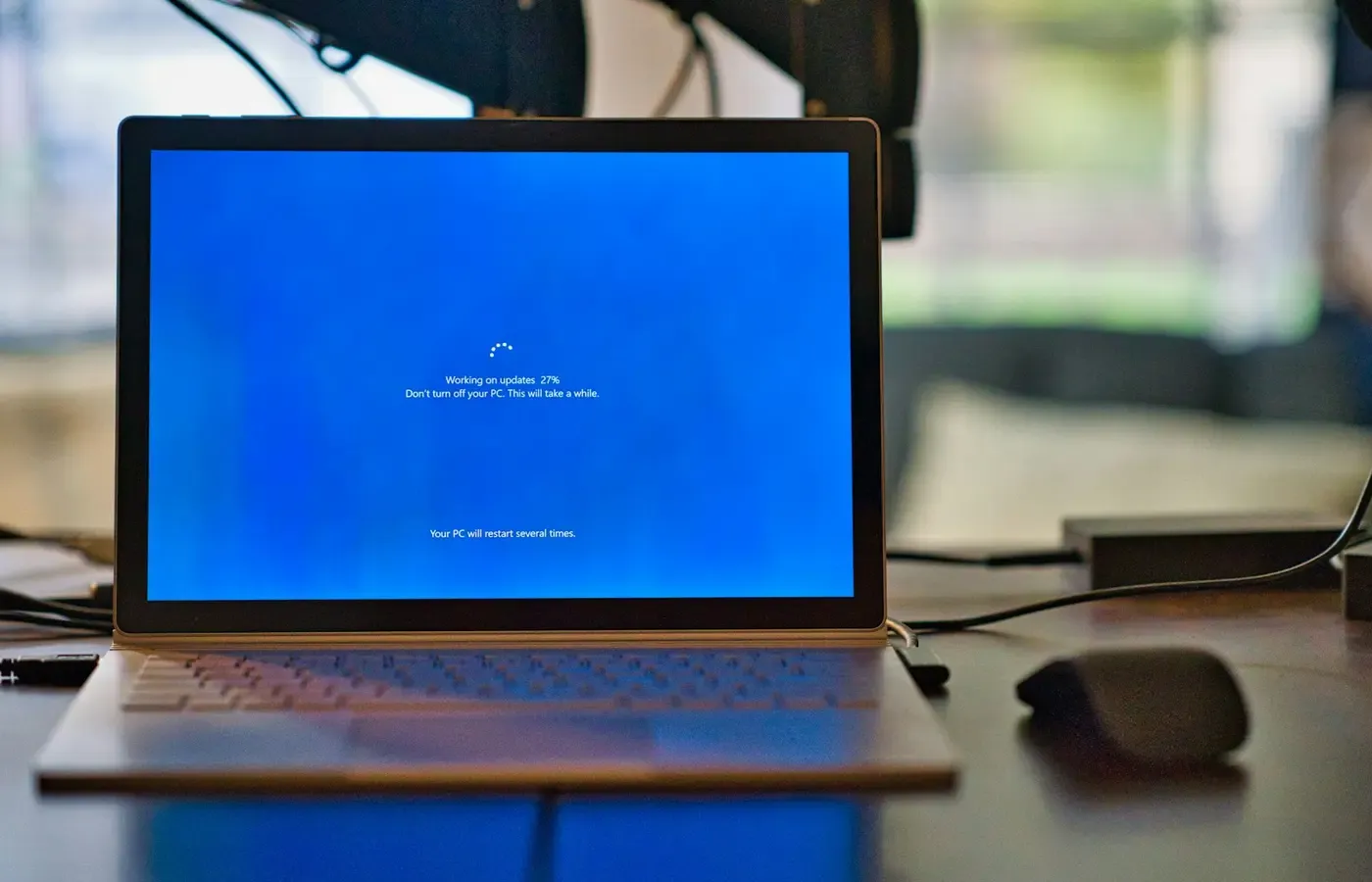

A laptop can remain perfectly usable after its security support ends. It may still start quickly enough, run familiar programs and feel too functional to replace. But a working machine and a supported machine are not the same thing.
The important change is not that the laptop suddenly becomes infected or unusable on a particular date. It is that the operating system, and sometimes other installed software, stops receiving fixes for vulnerabilities discovered after support ends. That alters what the computer should be trusted to do.
For some owners, the sensible answer is an upgrade. For others, it is a temporary, tightly limited role while they plan a replacement. An old laptop can also remain useful offline, be repaired if it can run supported software, or leave active service altogether. The right choice depends less on the machine’s age than on its software status, the data it handles and the consequences if something goes wrong.
This guide concerns general security-support decisions rather than a particular brand, model, country or operating-system release. Support policies and compatibility can change, so verify the exact machine and installed software before spending money.
Security support ends for software, not necessarily for the laptop
A laptop is a collection of hardware: screen, battery, storage, processor, ports and keyboard. Security support is usually attached to the operating system and its version, although browser makers, application developers and hardware manufacturers also set their own support periods.
Microsoft explains that an unsupported version of Windows no longer receives software updates, including security updates intended to protect against malicious software and reliability improvements that can include updated hardware drivers. Its explanation of what unsupported Windows means makes the distinction clear: the computer may continue to operate, but it is no longer being maintained in the same way.
That is why an old laptop can feel normal while becoming a less suitable place for email, banking, work documents or personal records. New vulnerabilities can be found after the final update. If the provider does not issue a fix, the owner has fewer ways to reduce the exposure without changing how the machine is used.
The risk is real but not automatic. No support date predicts that a particular laptop will be compromised on a particular day. Exposure depends on the software installed, how often the device connects to networks, whether it receives suspicious files or links, how accounts are protected and what a successful compromise could reveal or disrupt.
The Australian Cyber Security Centre advises that end of support increases cyber-security risk because products no longer receive updates. Its guidance for individuals and small organisations is straightforward: check support dates, upgrade to supported products, keep updates enabled, and isolate unsupported products from networks.
Establish what has actually reached end of support
Do not begin with the laptop’s purchase year or a vague impression that it is “too old.” First establish which layer of the setup has lost support.
A useful check takes four parts:
- Identify the laptop model. Find the model number on the underside, in system settings or in the original documentation. This is necessary for checking firmware, driver and operating-system compatibility.
- Identify the operating system and version. “Windows,” “macOS” or “Linux” is not enough. Support normally depends on a particular release or version.
- Check the operating-system provider’s official lifecycle or support information. Confirm whether the installed version is still receiving security updates, not merely whether the product name still exists.
- Check the laptop manufacturer’s support material. Look for current driver, firmware and compatibility information for that exact model. A manufacturer may stop supporting a model even while its operating system remains supported, and the reverse can also be true.
These are separate questions. A hardware maker’s warranty, repair availability or driver page does not establish that the installed operating system receives security patches. Nor does a supported operating system guarantee that every feature, peripheral or power-management function on an old laptop will work well.
The Australian Cyber Security Centre notes that end-of-support dates can differ for each product and directs owners to manufacturer information. That matters because a laptop may contain several products with distinct support timelines: the operating system, browser, office suite, security software, printer driver and network hardware can all age differently.
Before you make a decision, install every update still available and turn on automatic updates where practical. This does not extend a support deadline, but it prevents an avoidable gap while you assess your options.
Give the laptop a role that matches the risk
An unsupported laptop is not best described as simply “safe” or “unsafe.” A more useful question is: what is it still permitted to do?
The answer should reflect both likelihood and consequence. A machine used for a single local task carries a different kind of risk from one holding tax records, accessing work systems or staying signed in to a primary email account.
Uses that deserve a supported setup
A supported computer is the better default for tasks involving:
- banking, payment cards or shopping accounts;
- primary email, especially where it can reset other passwords;
- work files, client information or school systems;
- tax records, identity documents and sensitive family paperwork;
- account recovery codes and password-manager access;
- frequent web browsing, downloads and file sharing.
Security updates do not make a computer invulnerable, but they remain a basic layer of protection. Microsoft specifically notes that security updates are intended to protect personal information from malicious software. If the laptop is central to your digital life, losing that layer is a strong reason to move to a supported platform rather than merely carry on.
Lower-consequence roles can be more defensible
A laptop past support may still have a limited future, provided the role is honestly constrained. Possible examples include viewing local media, writing documents that are saved elsewhere, using offline reference material, controlling a device without network access, or running a dedicated application that does not require internet connectivity.
The key word is constrained. The Australian Cyber Security Centre recommends isolating unsupported products from networks and avoiding storage of important data on them. “Offline” should mean more than using the device less often: disable or disconnect network access when it is not needed, remove sensitive files and avoid signing into valuable accounts.
Even an offline laptop is not risk-free. USB drives, external storage and occasional connections can carry files between devices. But reducing network exposure and keeping important data away from the machine can make a limited, temporary use more proportionate than treating it as an everyday personal computer.
Four routes after support ends
There is no universal replacement deadline. There are, however, four distinct routes, each with different costs and responsibilities.
1. Upgrade to a supported release
If the laptop can run a currently supported operating-system release reliably, an upgrade may preserve a familiar machine and delay replacement. Check official compatibility requirements before committing time or money, and make a verified backup first.
An upgrade is worthwhile only if it produces a setup you can maintain. Consider whether essential programs, printers, accessibility tools, storage space and drivers still work. A technically successful installation that leaves the laptop slow, unstable or unable to perform its actual job is not much of a consumer win.
Microsoft recommends moving unsupported Windows devices to a current, in-service release. Where the device cannot meet the relevant requirements, it recommends replacement with a device that supports Windows 11. That is guidance for its own ecosystem, not proof that every older computer must be discarded; it does show why eligibility needs checking before paying for repairs intended to extend a machine’s active life.
Installing a different operating system can be another route for some technically capable owners, but it is not an automatic security remedy. Whether a particular laptop is compatible, receives continuing updates, supports its hardware and remains manageable depends on the device, software choice and maintenance capacity. Do not treat a new installation as a shortcut around those questions.
2. Contain the risk while you make a plan
Sometimes replacement or migration cannot happen immediately. The UK National Cyber Security Centre acknowledges that upgrading is not always feasible, while advising owners to weigh the risk of continuing against the cost of upgrading or replacement.
A temporary containment plan should be specific:
- remove sensitive files and saved passwords;
- sign out of high-value accounts;
- avoid email attachments, downloads and routine browsing;
- keep the device off networks where possible;
- use another supported device for accounts, payments and important communications;
- set a date to revisit the decision.
The NCSC’s guidance on obsolete products is especially useful on this final point. Continuing with obsolete software is not a one-off acceptance of risk. New threats and vulnerabilities can emerge, so the decision needs review.
For certain legacy Microsoft products, Extended Security Updates may exist as a paid bridge. Microsoft describes its ESU programme as a temporary option rather than a long-term solution, with limited security coverage and no extension of the original product lifecycle. Availability, eligibility, cost and consumer access are product-specific, so do not assume it applies to your laptop.
3. Repurpose it offline or on an isolated network
Repurposing is often the most satisfying answer when the laptop’s hardware remains useful but it no longer belongs in the centre of household computing.
It might become a local media player, a writing machine without online accounts, a recipe or workshop reference computer, or a device for older software with files kept separately. This can reduce waste and preserve a useful tool without pretending that it remains suitable for everything.
For a repurposed device, make the boundary visible. Remove personal data, use a separate non-sensitive account if one is needed, disable automatic connection to networks and label the machine for its intended role. If other people in the household may use it, explain what it should not be used for.
Repurposing works best when it lowers the stakes. It is a poor compromise when the old laptop remains the only way to access a family’s essential services.
4. Repair or replace with the next support period in mind
A failed battery, worn storage drive or broken screen does not itself make a laptop insecure. Repair may be sensible if it returns a machine to useful service on a supported operating system.
But a repair does not restore security support. Before approving one, ask a more consequential question: after the repair, will this laptop run supported software well enough for the role I need it to perform?
Replacement becomes more persuasive when the answer is no, particularly if the device handles personal data or is needed for work, education or daily administration. The cost is not just the new laptop. It may include data transfer, adapters, software subscriptions, setup time and replacing peripherals that no longer work. Those costs are real, but so is the cost of trying to maintain an unsuitable machine through repeated fixes and workarounds.
There is no responsible universal break-even figure without model-specific repair costs, reliability evidence and your own needs. Instead, compare the likely repair against the useful future it buys:
| Question | Why it matters |
|---|---|
| Can it run a supported operating system? | This determines whether repair restores a suitable everyday computer or merely prolongs an unsupported one. |
| Does it still meet your actual tasks? | A machine for documents and video calls has different needs from one used for local media. |
| What else is worn or unreliable? | Battery, storage, keyboard, hinges and charger condition affect remaining usefulness. |
| What will migration require? | Backups, account access, applications and peripherals can add time and expense. |
| Is used equipment an option? | A newer supported used laptop may be a better fit than repairing an older one, if its support status and condition can be verified. |
A used replacement is not automatically the cheapest or greenest choice, but it is worth considering alongside a new device and repair. The same checks apply: exact model, supported operating system, battery condition, storage health where assessable, charger, return terms and realistic remaining support.
Protect your files before urgency takes over
The most stressful laptop decisions often begin with a failure rather than a support notice. Avoid making the security question harder by preparing your exit while the existing machine still works.
Back up important files to a location you can access from another device, then check that the backup actually opens. Record account recovery methods and ensure a trusted supported device can receive recovery messages. Export or preserve data from programs that may be difficult to move later.
If you plan to sell, donate, recycle or pass on the laptop, sign out of accounts and follow the operating-system provider’s documented reset or data-removal process. Do not assume that deleting visible files is enough to prepare a device for someone else.
A decision card for an ageing laptop
Before making a purchase or repair booking, work through this short sequence:
- Confirm the laptop model, operating system and exact version.
- Verify whether that version still receives security updates.
- Install available updates and enable automatic updates while support remains.
- Back up important files and test the backup.
- Decide what the laptop may still be used for, based on the data and accounts involved.
- Check whether a supported upgrade is practical and whether the machine can run it well.
- If you defer replacement, isolate the laptop from networks where possible and set a date to reassess.
- If repairing or replacing, judge the outcome by the supported life and usefulness it creates, not by the lowest immediate cost.
The bounded judgment is simple: an unsupported laptop does not become rubbish on its final support date, but it should stop being trusted by default. Keep it only if its next role matches the risk you are willing to carry. Repair it when that repair leads to a maintainable supported setup. Replace it when the device can no longer provide one for the tasks that matter.
Sources & methodology
This guide is based on official cyber-security and software-support guidance, not hands-on testing of a particular laptop. It does not establish support dates, compatibility, repair economics or security outcomes for individual models.
- The Australian Cyber Security Centre’s end-of-support guidance informed the advice on checking support dates, applying updates, network isolation and avoiding important data on unsupported products.
- The UK National Cyber Security Centre’s obsolete-products guidance informed the discussion of risk acceptance, reassessment and the trade-off between continued use and replacement.
- Microsoft’s unsupported Windows guidance informed the explanation of lost security and reliability updates.
- Microsoft’s Extended Security Updates FAQ informed the limited description of ESU as a temporary migration bridge.