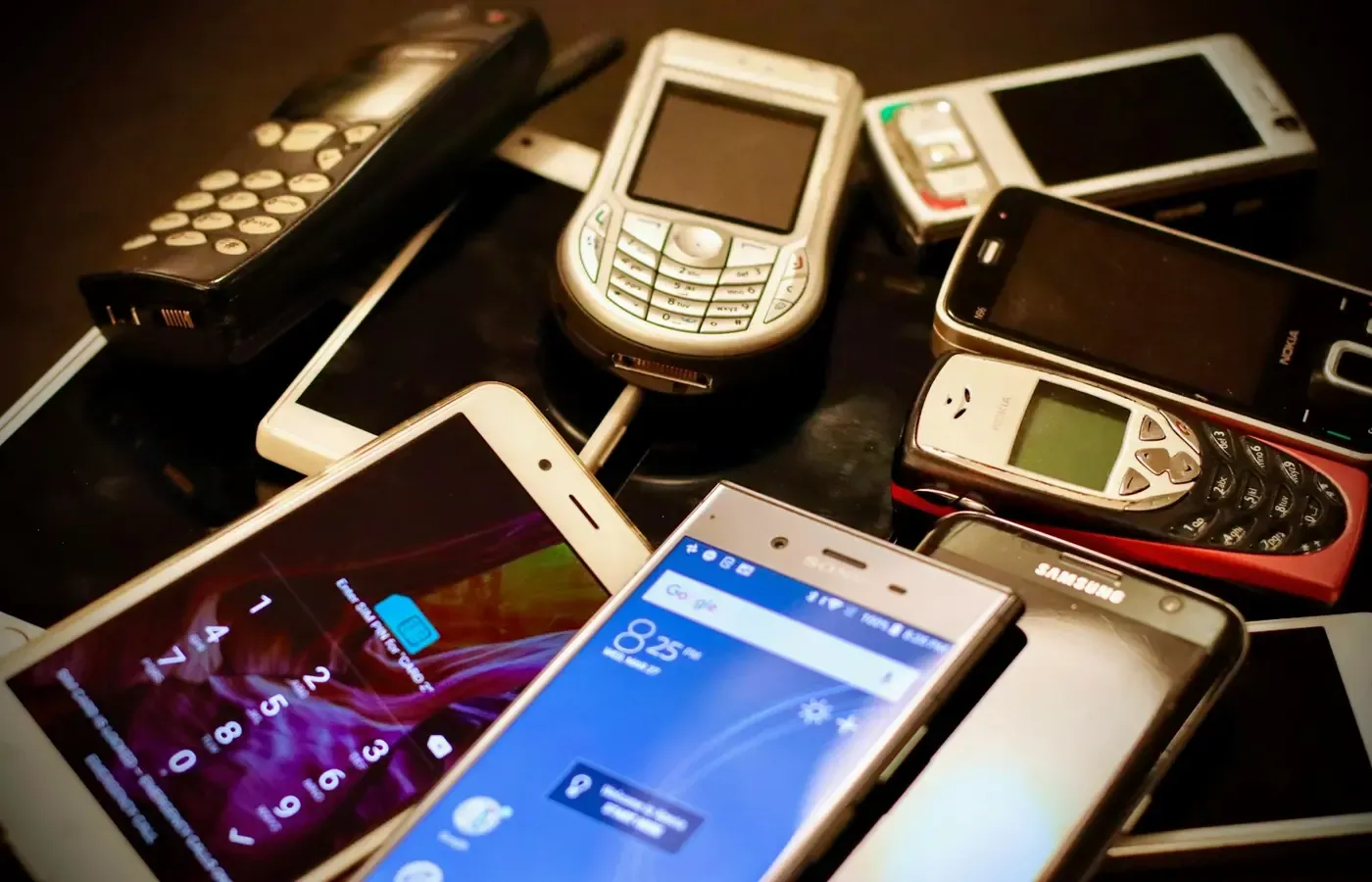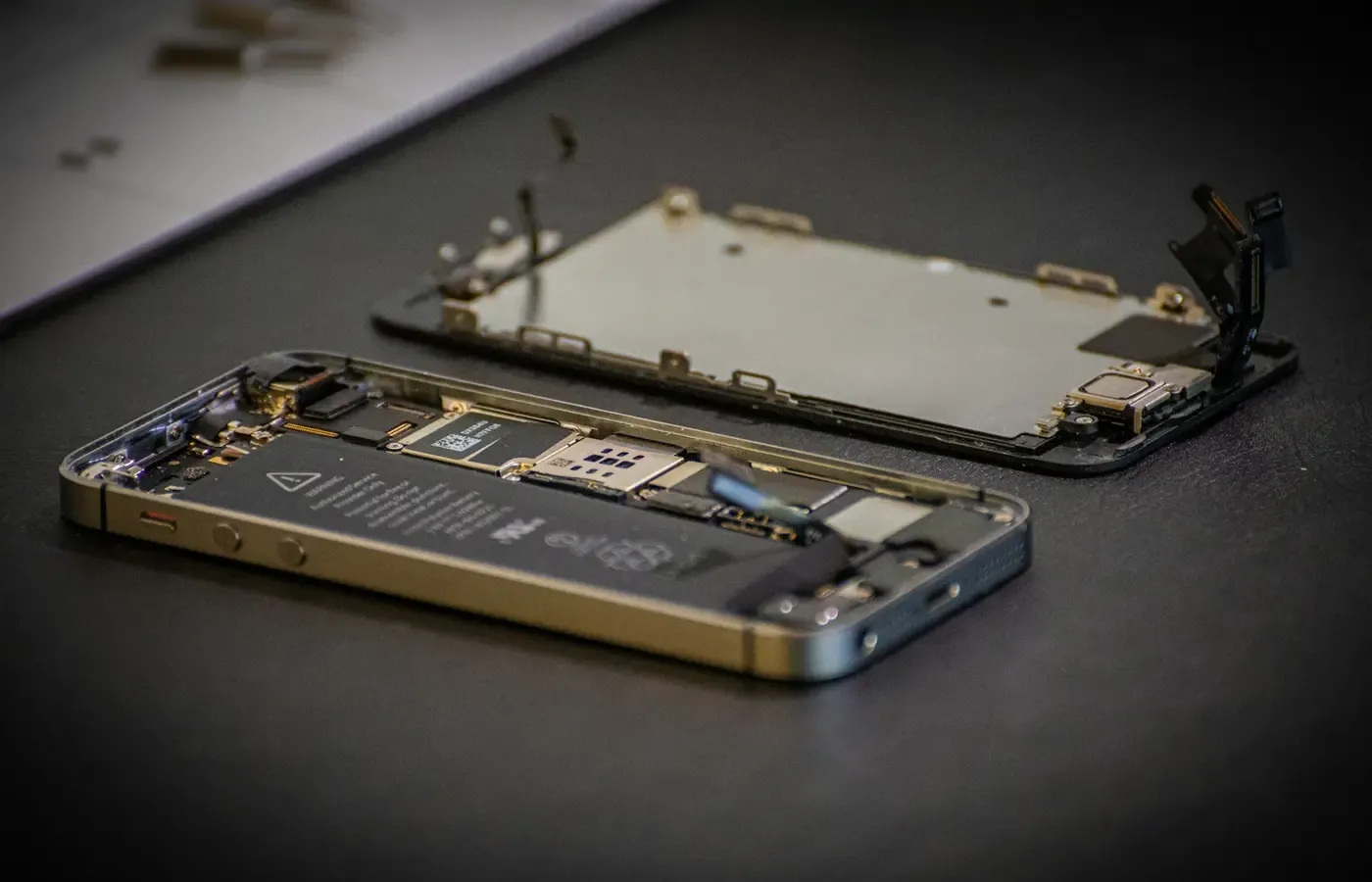
A new phone can feel ready long before it is safe to erase the old one. Your photos may have arrived, your messages may be syncing and your usual apps may be installed. But an authenticator app is different: it may be carrying the rotating codes, approval prompts or sign-in credentials needed to enter the accounts that make the rest of your digital life recoverable.
That makes moving to a new phone less like copying an app and more like changing the locks while keeping a spare key within reach.
The practical rule is simple: do not reset, trade in, recycle or wipe the old phone until you have proved that the new phone can sign in to the accounts that matter. Microsoft gives the same basic warning in its guidance for moving Microsoft Authenticator: complete the transfer before disposing of the previous device.
The complication is that there is no universal “transfer authenticator to new phone” button. Some apps can export supported entries. Some services require you to enrol the new device from their own security settings. Work accounts, passkeys and push approvals can have their own rules. A code appearing in a new app is encouraging, but it is not always proof that every sign-in method has moved.
Keep the old phone as an access backup
For the short period when you are changing phones, the old device is not merely clutter. It may be your last working route into an email account, password manager, workplace portal or financial service.
Authenticator apps can hold several kinds of security material. Microsoft Authenticator, for example, supports verification codes, multifactor authentication prompts, passwordless sign-in and passkeys. Its backup and restore process does not necessarily move every one of those methods in the same way. Microsoft says passkeys are handled separately from Authenticator account backup, while work or school accounts need an additional sign-in and setup step after restoration.
This distinction matters because the familiar six-digit code is only one possible second factor. You might also approve a notification, use a device-bound passkey, receive a recovery message or enter a backup code. A phone migration that moves one route may leave another route behind.
Remote’s account-support guidance puts the risk plainly: changing or resetting a phone before moving authenticator codes can mean being locked out until two-factor authentication is reset. That is not a reason to avoid two-factor authentication. It is a reason to treat the transition as a security task, not as an afterthought at the checkout counter.
If you are trading in the old phone, ask for enough time to complete the move at home. If you are sending it for repair, consider whether you can retain it until your important accounts have been verified. The right transition period is personal: a day may be enough for a lightly used phone; longer may be sensible if you use many work, financial or family accounts. The important part is that you decide after testing access, not before.
Start with the accounts that can recover the rest
Do not begin by trying to catalogue every website you have ever joined. Start with the accounts whose loss would make other recovery harder.
A useful order is:
- Primary email account. Password resets and security alerts commonly arrive here.
- Password manager. If it stores passwords, recovery codes or passkeys, it can be central to the rest of the move.
- Main cloud account. This may control device backups, contacts, documents and app purchases.
- Work or school accounts. These often have separate enrolment rules and may require an administrator if access is lost.
- Banking, payment and investment services. Check each service’s own security page rather than assuming the authenticator entry tells the full story.
- Other high-consequence services. This may include government portals, domain registrars, online shops holding payment details, communications services and cryptocurrency exchanges.
The reason for this inventory is not paranoia. It is that one account can have more than one protected action.
Kraken’s support documentation is a useful illustration, not a universal model: it distinguishes sign-in two-factor authentication from settings for trading, funding and a Master Key. The lesson is broader than any one exchange. A successful login does not necessarily prove that all the security controls associated with an account have been moved or remain usable.
Write down the small set of accounts you need to test. Do not put passwords or one-time codes in an unprotected note. The point is simply to avoid discovering, after the old phone has been wiped, that the account you forgot is the one needed to regain control of everything else.
Choose the route your authenticator and each service actually support
There are two broad ways to move authenticator access. They are often confused, and they are not interchangeable.
Route one: export or restore supported authenticator entries
Some authenticator apps offer a transfer, export, backup or restore process. The app may create a QR code, use an account backup or otherwise transfer supported entries to the new device.
This can be the quickest route, especially if you have many time-based one-time-password entries. But “supported” is doing important work. An export feature does not guarantee that every account, every sign-in method or every credential type will transfer successfully.
Microsoft’s instructions describe backing up and restoring supported Microsoft Authenticator account entries. After restoring a work or school account, however, the account name may appear simply so you can recognise it; you still have to sign in again and finish setup. That is a useful reminder not to confuse an entry in a list with a functioning factor.
Kraken similarly advises users to check whether their authenticator app offers an export feature before changing phones. Remote notes that several common authenticator apps may offer a transfer or export option, but app capabilities change and vary by platform and version. Check the current instructions inside the authenticator you actually use rather than relying on a general guide or a screenshot from an older phone.
Route two: enrol the new phone from the service’s security settings
Where an app cannot export an entry—or where a service asks for fresh enrolment—sign in to the service while the old phone still works. Then use its security settings to add a new authenticator, new device or replacement sign-in method.
This is slower, but it can be the clearer route for high-value accounts. You can see exactly which methods are registered, add the new one, test it and then remove the old one only when you are satisfied.
Kraken’s guidance describes this kind of change for sign-in 2FA when the old device remains available. The same general approach is worth considering elsewhere: use the working factor to authorise the replacement factor, rather than waiting to invoke an account-recovery process.
For an important account, it may be reasonable to use both routes where the service permits it: transfer the authenticator entry, then inspect the account’s security page and complete any requested device registration. That is not duplication for its own sake. It is checking that the account recognises the new method you intend to rely on.
A transferred code is not always a transferred sign-in method
The most dangerous assumption in this process is that a familiar account label in the new authenticator app means the account is fully moved.
It may mean that the rotating-code secret has transferred. It may not mean that a push-notification approval is enabled, that passwordless sign-in works, or that a passkey exists on the new phone.
Work and school accounts often need another step
Microsoft specifically says that restoring a work or school account transfers its name for recognition but requires another sign-in to complete setup. That is a sensible account to test early, particularly if it is needed for payroll, documents, remote access or a school portal.
If your organisation manages devices or uses a dedicated sign-in app, follow its instructions. Do not assume that consumer-account migration advice applies to an employer’s security system.
Passkeys have their own migration question
Passkeys can be convenient because they avoid typing passwords and codes, but their storage and synchronisation arrangements are separate from an authenticator app’s code backup. Microsoft explicitly states that passkeys are handled separately from Microsoft Authenticator account backup. If a passkey existed only on the old phone, Microsoft advises adding a new passkey for the new phone.
The practical action is to inspect the security settings of the account that uses the passkey. Look for registered passkeys or devices, add a replacement where appropriate, and test it before removing the old one. Do not erase a device merely because an authenticator restore appeared successful.
Recovery material belongs to the account, not the phone move
Recovery codes are a fallback for some services, but their availability and rules are account-specific. OneSignal, for example, says its recovery codes are shown once and are the route back into an account if authenticator access is lost. Its support-led recovery path can require identity verification if both authenticator access and recovery codes are unavailable.
The general lesson is modest: when an account offers recovery codes, check whether you have retained them safely and can find them. Do not assume every service offers them, that every set works the same way, or that a support team can immediately restore access.
Verify access with real sign-ins, in the right order
Visible codes are useful evidence, but the decisive test is a real sign-in using the new phone. Some services may reject a code because the enrolment is incomplete, the clock is wrong, the wrong entry was transferred or an additional approval is required.
Before wiping the old device, work through this sequence:
- Open the new authenticator app. Confirm that the expected account entries appear.
- Test your recovery foundation. Sign in to primary email, your password manager and your main cloud account using the new device’s available method.
- Test high-consequence accounts. Use the new phone to sign in to work or school services and any financial or payment accounts you need regularly.
- Inspect security settings. Look for old devices, duplicate authenticator enrolments, registered passkeys and backup options. Add or remove methods only when you understand what each change does.
- Locate recovery routes. Confirm that recovery codes, alternate email addresses, backup contact methods or other documented options are available where the service provides them.
- Keep the old phone temporarily if practical. Once the critical tests work, retain it through a short transition period of your choosing before erasing it.
Remote’s advice to confirm that the new app displays its code before giving up the previous phone is a good minimum check. For accounts that matter, go further and test a login. That modest extra effort is usually cheaper than a lengthy recovery process.
When you eventually erase the old phone, remove it from any account device lists where that is appropriate, then use the phone’s normal reset process before sale, trade-in or recycling. The exact steps depend on the device and service ecosystem, so use the manufacturer’s current instructions rather than a generic migration checklist.
If the old phone has already gone
If you wiped, lost or traded in the old phone before moving authenticator access, stop trying random codes or repeatedly guessing at recovery options. Repeated failed attempts can complicate an already stressful situation.
Instead, work through the service’s documented recovery route:
- Use saved recovery codes if the account offers them and you have them.
- Look for the service’s two-factor reset, lost-device or account-recovery process.
- Use another existing sign-in method only if it is genuinely registered to the account and you can access it safely.
- Be prepared for identity checks, support correspondence or a waiting period.
Kraken describes both a procedure for changing sign-in 2FA while the original device remains available and a bypass route for users who no longer have access. OneSignal likewise documents recovery using saved codes and a support process involving identity verification where those codes are unavailable. The details differ by company, which is why a general recovery article cannot replace the instructions for the account in front of you.
Once you regain access, resist the understandable urge to turn off every security control permanently. Instead, enrol a replacement authenticator or approved sign-in method, review the account’s recovery options and record where the recovery material is stored. The aim is not to create an elaborate personal security system. It is to ensure that losing one phone does not become losing the account.
Questions readers commonly ask
Can I transfer Google or Microsoft Authenticator to a new phone before I erase the old one?
Yes, that is the sensible time to do it—but use the transfer method supported by the specific app and then test the affected accounts. This guide has direct documentation for Microsoft Authenticator, whose backup and restore process covers supported entries. It does not establish current product-specific instructions for Google Authenticator, so consult the app’s own current transfer guidance rather than assuming the two products behave identically.
Why do some accounts still ask me to set up two-factor authentication after I transferred my authenticator app?
Because transferring a code entry is not necessarily the same as enrolling a new sign-in method. Work or school accounts may require an additional sign-in and setup step after restore. Push approvals, passwordless sign-in and device registrations can also be separate from rotating verification codes.
Do passkeys move with an authenticator app backup?
Do not assume so. Microsoft says passkeys are handled separately from its Authenticator account backup. Check the security settings of each account that uses a passkey and add or verify a passkey on the new phone before removing the old device.
What can I do if I wiped my old phone before transferring my authenticator codes?
Use recovery codes if you saved them, then follow the affected service’s documented lost-device or 2FA-reset process. Expect that some services may require identity checks or support assistance. Avoid repeatedly guessing; focus first on the email account and other services that can help you recover the rest.
The decision to make before handing over the old phone
A phone upgrade is complete when the new device has been tested as an access device, not when its home screen looks familiar.
Keep the old phone until you can sign in with the new one to your recovery foundations and high-consequence accounts. Treat exported codes as a starting point, not proof. Check separately for work enrolment, passkeys, prompts and recovery material. Then erase the old device when it is no longer your only route back in.
That approach adds a little friction to an upgrade. It also preserves the one thing a new phone cannot automatically restore: your ability to prove that you are you.
Sources & methodology
This guide is based on account-support and technical documentation supplied for this article. It does not rely on first-hand testing, and it does not claim that any transfer method works for every authenticator app, service, phone platform or account type.
- Microsoft Learn: transfer Microsoft Authenticator to a new phone
- Remote: before you change your phone, a 2FA checklist
- Kraken: transfer or bypass authenticator-app sign-in 2FA
- OneSignal: set up, manage and recover two-step authentication
- Wirecutter: recovering from lost access to a two-factor authentication app
Service policies and app features can change. Before removing an old authenticator or erasing a phone, inspect the current security and recovery guidance for the particular accounts you depend on.